

📊 Introducing more control over how your charts look

More control over how your charts look
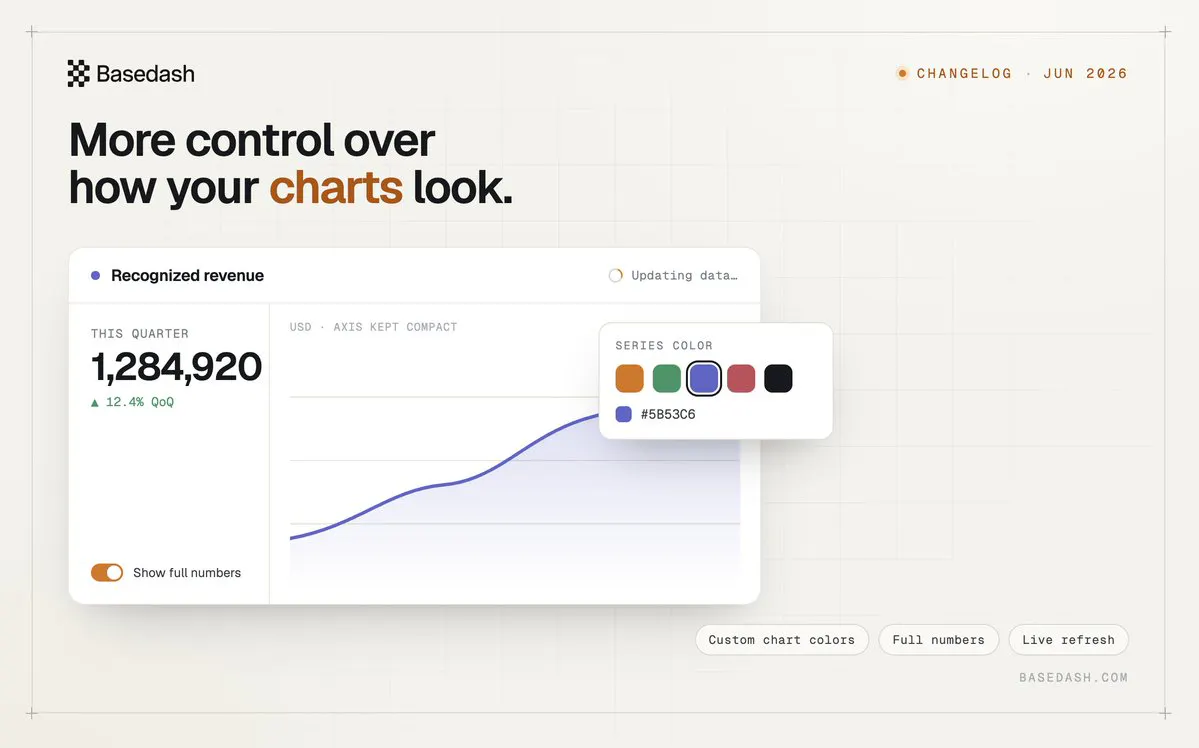
You can now set a custom color for single-series charts. Line, bar, funnel, and scatter charts that don’t have a breakdown get a dedicated Series color setting, so you’re no longer stuck with the default and can match a chart to your brand, your dashboard, or whatever convention your team already uses.
Numeric charts also get a new Show full numbers toggle. By default Basedash keeps big values compact (like 1.2M), but when you need the exact figure you can flip a chart to show the full number in the primary value and data labels while keeping the axis labels compact and readable. It’s an easy way to make number and KPI charts precise without cluttering the rest of the chart.
Dashboards stay visible while their data refreshes
Charts on dashboards now render their cached data immediately, even when that data is due for a refresh. Instead of blocking on a fresh query and leaving you looking at a loading state, Basedash shows the most recent results right away and kicks off the refresh in the background, swapping in new rows the moment they’re ready.
The refresh itself moved off the web request and onto a dedicated background job, with duplicate refreshes for the same query collapsed into one. The chart header keeps a subtle spinner (with an “Updating data from…” tooltip) while a refresh is in flight, so you always know whether you’re looking at the latest numbers—without the dashboard ever going blank on you.
A cleaner, smarter AI chat
The AI chat’s thinking steps got a visual refresh. Reasoning summaries now render inline as plain text—like preambles—instead of hiding behind an expandable “Reasoning summary” row, so the assistant’s train of thought reads naturally as it works. Tool steps that still have details to expand got tidied up too, with a lighter row style and a caret that only appears on hover.
The assistant can also maintain durable memory more precisely. When it learns something worth keeping, it can make targeted edits to your organization’s global AI context—not just append to it—and each change comes with a short, human-readable description of what it updated, so it’s clear what the assistant chose to remember.
Fixes and improvements
Added a Copy → SQL action to charts in chat, so you can grab the underlying query and drop it into the chat input in one step.
Let the chart assistant set and update a chart’s description when editing it.
Added hover tooltips, a crosshair, and clearer legend and segment interactions to the AI usage charts in billing settings.
Fixed vertical bars overlapping on time-series charts with sparse, clustered dates.
Fixed setup for Fivetran file connectors like Google Drive so Magic Folder connectors create correctly.
Made chat handle files that can no longer be retrieved more gracefully instead of surfacing a generic error.
Replies
chart styling sounds like a nice to have until you ship a dashboard that an executive opens twice. the visual decisions are how the metrics actually get read. small thing on the surface, big thing in practice.
This is a useful direction. For analytics products, “AI data analyst” only becomes trustworthy when the user can inspect and control the output, not just receive a pretty chart.
The styling/control layer matters because business teams often need the same data shown differently depending on the audience: exec summary, ops review, customer report, or internal debug. I’d be curious whether you’re thinking about saving chart preferences per team or per use case, because that could make the AI feel less like a one-off generator and more like a repeatable analyst.