

Sigma File Manager v2.2 Is Now Available!

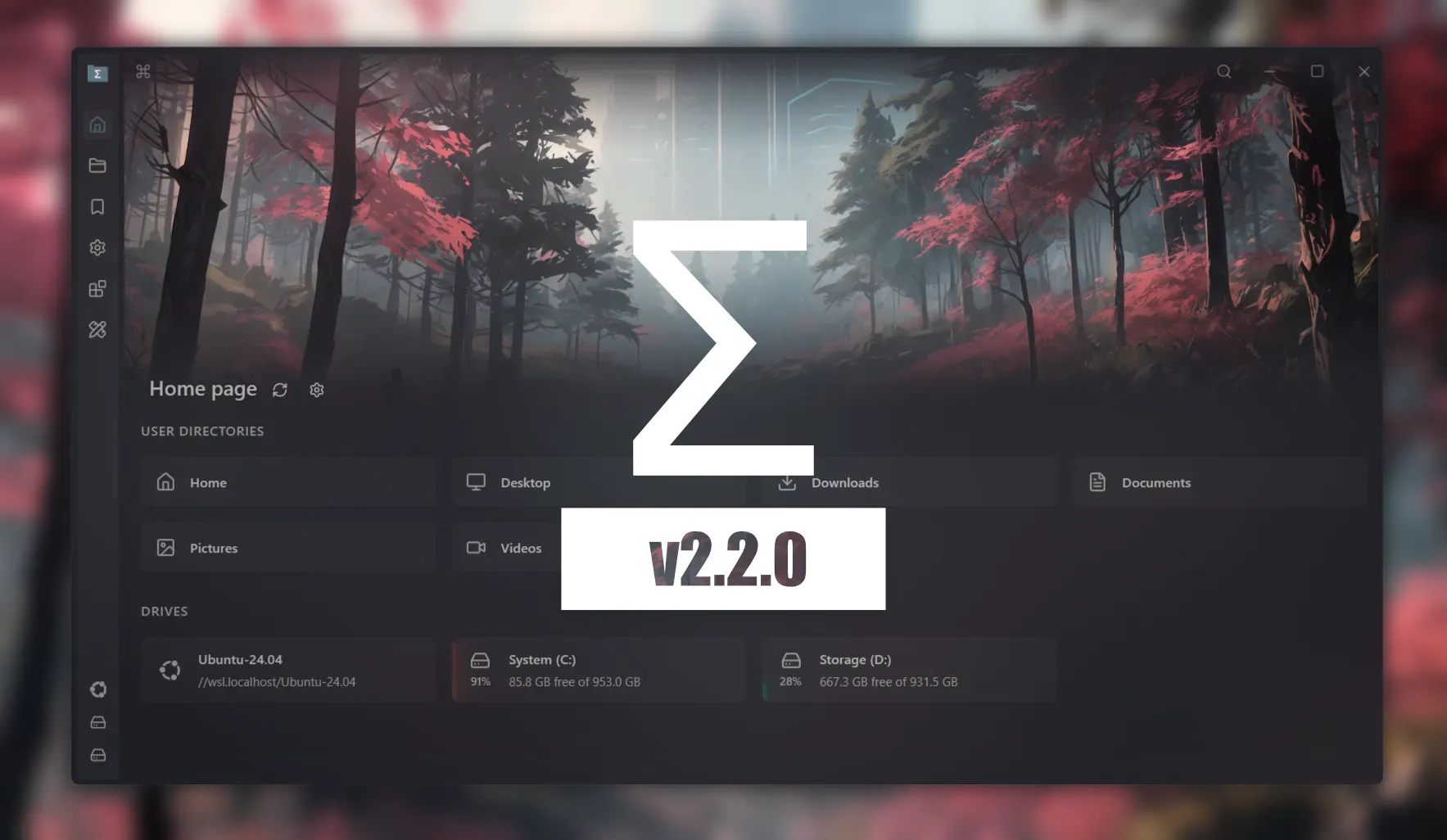
A major update is now available on MS store, Winget, and Github
https://github.com/aleksey-hoffman/sigma-file-manager
Full changelog (with image previews):
https://github.com/aleksey-hoffman/sigma-file-manager/blob/main/CHANGELOG.md
New Features:
System Clipboard Integration
Copy and paste files, folders, and images between Sigma File Manager and other apps through the system clipboard.
- Cross-app file transfer: copy or cut items in SFM and paste them into apps like File Explorer, or paste paths and files copied from other apps into the navigator with `Ctrl+V`;
- Image paste: paste images copied from browsers and other apps directly into a folder;
- Conflict dialogs: when pasted items already exist, choose `Rename` or `Merge`, and resolve individual file conflicts with Replace, Skip, Keep both, or Apply to all;
- Clipboard toolbar: optional toolbar preview for images and file paths copied in other apps;
Toolbar visibility can be controlled in `Settings > UI appearance > Clipboard`. Paste with `Ctrl+V` still works when the toolbar is hidden.
Box Selection
Drag on empty space in the navigator to select multiple items with a selection box.
- Modifiers: hold `Ctrl` or `Shift` to add to the current selection; hold `Alt` to invert;
- Easier targeting: optionally increase list padding and grid gaps for more room to start a drag;
Enable in `Settings > General > File view > Enable box selection`.
Linked Split View
New `Linked` split view mode for a simpler column-style workflow: clicking a folder in the first pane shows that folder's contents in the second pane.
The existing independent `Split` mode is unchanged. Choose the mode from the navigator options menu under `Split view mode`, or toggle split view with `Ctrl+S`.
Link Handling
Create and inspect filesystem links from the navigator.
- Create link: create symbolic links, shortcuts, hard links, and junctions from the context menu (`Create link`);
- Link columns: optional list columns for Kind, Links, Link target, and Link status (`Valid`, `Broken`, `Unknown`, `Unsupported`);
- Open behavior: directory shortcuts and symlink folders navigate to their targets; other link targets open with the default app;
Native Properties Window
On Windows, open the native system Properties dialog for selected items from the context menu, actions menu, `Alt+Enter`, or `Alt` + double-click.
List View Column Resizing And Reordering
List view columns can be resized and reordered to match how you work.
- Resize: drag column edges to change widths;
- Reorder and visibility: manage order and visibility from the list header `Columns` popover;
- Width options: `Fill available width` and `Set minimum widths`;
Root Locations Address
A root `Locations` address lists drives and virtual locations for faster switching.
- Address bar: go up from a drive root or open `Locations` from the address bar / address editor;
- Favorites and tags: Locations can be added to favorites and tagged like other directories;
- Split view: especially useful for switching drives between panes without leaving the navigator;
Extensions:
Extension APIs And Views
Extensions gain more host capabilities and UI building blocks.
- Local binaries: configure extension dependencies with auto setup or manually chosen local binaries (`Extensions > Dependencies`);
- HTTP requests: extensions can make HTTP requests to hosts allowed by their manifest;
- View control: extensions can apply navigator layout and sorting preferences (with the view permission);
- Clipboard API: extensions can read and write the clipboard (with permission);
- List-detail view: new extension UI pattern with a searchable list and a detail pane;
New Settings:
- Enable box selection: drag empty space to multi-select (`Settings > General > File view > Enable box selection`);
- Increase file view gaps: add list padding and larger grid gaps for easier targeting (`Settings > General > File view > Increase file view gaps`);
- Keep Quick View window in memory: keep Quick View loaded so it opens instantly (uses about 200 MB) (`Settings > General > Performance > Keep Quick View window in memory`);
- Keep Print window in memory: keep the Print window loaded so it opens instantly (uses about 200 MB) (`Settings > General > Performance > Keep Print window in memory`);
- Clipboard toolbar for external images: show the clipboard toolbar for images copied in other apps (`Settings > UI appearance > Clipboard`);
- Clipboard toolbar for external paths: show the clipboard toolbar for file paths copied in other apps (`Settings > UI appearance > Clipboard`);
- Dynamic info panel size: let the info panel size adapt, or turn this off by resizing manually (`Settings > UI appearance > Info panel > Dynamic info panel size`);
- Show full-size image in info panel preview: show full-resolution images in the info panel (`Settings > UI appearance > Info panel > Show full-size image in info panel preview`);
- Mute video preview by default: mute info panel video previews while browsing (`Settings > UI appearance > Info panel > Mute video preview by default`);
- Automatically play video previews: autoplay videos in the info panel when selected (`Settings > UI appearance > Info panel > Automatically play video previews`);
New Shortcuts:
- Native Properties (`Alt+Enter`): open the native Properties window for selected items on Windows;
New Languages:
- Hebrew (`עברית`): full translation with right-to-left layout support (`Settings > General > Language`);
UX Improvements:
Archive Extraction
ZIP extraction now supports encrypted archives and non-UTF-8 file names.
- Password-protected ZIP: enter an archive password when extraction requires it;
- File name encoding: choose encoding in `Archive extraction options`, with auto-detect preferred and grouped regional encodings as fallbacks;
Grid Sorting
Grid layout now has its own sort controls in the navigator options menu.
- Sort by: Name, Items, Size, Modified, Created, Tags, Kind, Links, and Link status;
- Direction: ascending or descending, stored separately from list-view sorting;
Shell Extensions
The context menu can load modern shell extension actions registered by other apps under `Shell extensions`.
Session Memory
Scroll positions and active tabs are restored when you switch away from a page or pane and come back during the same session.
Navigator Performance
Browsing large folders and media is faster and uses less memory.
- Cold loading: faster first load when opening directories;
- Icon loading: custom and system icons appear with less delay;
- List scrolling: smoother list scrolling in large directories;
- Media previews: image, GIF, and video previews are more responsive and use less memory;
- Indexing: more stable global search indexing;
Home Page And Context Menus
- Disconnect: disconnect network or removable mounts from the context menu when supported;
- Close all duplicates: tab menu `Close all duplicates` now closes every duplicate path in the workspace, not only duplicates of the current tab;
- Right-click clear: right-clicking empty navigator background clears the current selection before opening the background menu;
- Home actions: home page context menus close after action clicks, `Open in new tab` opens the navigator, and new tabs scroll into view;
- Window drag region: on Linux-style title bars, the drag region extends across toolbar buttons for easier window moving;
UI Improvements:
- Active pane indicator: clearer active pane marker in the status bar when split view is on;
- Resizable info panel: drag to resize the info panel width and the preview/details split;
- Compact info panel: denser property layout in the info panel;
- Context menu actions: `Edit card` is shown as an action button, with smaller action buttons overall;
- Navigator styling: improved adaptive layout, tab active-state styles in split view, and command palette extension view design;
- RTL layout: cleaner alignment for right-to-left languages;
Bug Fixes:
- Type-to-search: fixed quick search not activating on non-Latin keyboard layouts;
- Directory loading: fixed entries reordering after a directory finishes loading;
- Custom icons: fixed custom icons loading with a noticeable delay;
- Grid cards: fixed grid layout cards changing size while loading;
- Grid scrollbar: fixed the grid scrollbar hiding behind sticky headers;
- Quick selection: fixed quick file selection sometimes opening the file;
- Terminal shortcut: fixed `Alt+T` opening a terminal for the current directory instead of the selected entry;
- Open files: fixed opened files launching from the wrong working directory;
- SMB shares: fixed inability to open files on SMB shares;
- WSL paths: fixed WSL host UNC path handling on Windows, including `//wsl.localhost` as a virtual distro list;
- Default file manager: fixed setting the default file manager in Microsoft Store builds;
- AppImage (Linux): fixed `Could not create default EGL display: EGL_BAD_PARAMETER`;
- Extension install (Linux): fixed install failures for multi-file dist extensions;
- Extension details: fixed overview page alignment styles;
- Device wake: fixed the app getting stuck in a loading state after device wake-up;
- Update notifications: fixed update notifications appearing for unreleased versions;
- RTL: fixed right-to-left layout issues;
- Translations: fixed missing and incorrect translation strings;
Replies
System clipboard support sounds boring until it is the difference between a file manager feeling native and feeling like a sandbox. The conflict handling is the real test. Does ‘apply to all’ preserve a review trail, or can users undo a bulk replace after the fact?