

Introducing Happycapy Connectors: Your AI Finally Has a Place to Work

Your AI is already smart enough. Give it somewhere to work.
Asking AI a question was never the hard part. The hard part is what happens after the answer. However good the draft is, the one pasting the table into the doc, saving the file where it belongs, and sending the email to the client — that's still you. Your work is scattered across a dozen tools: some of it in your inbox, some in Notion, some in a folder on your laptop. Your AI lives in exactly one place, a chat box. Wherever it can't reach is wherever it can't help.
So the problem was never intelligence. It's that your AI has nowhere to work. That's the gap Happycapy Connectors close: a connector is a grant that lets Happycapy work inside a tool you already use — the big apps, your inbox, even your own computer. You don't switch tools, migrate data, or learn anything new. Capy comes to your work, not the other way around. We've been saying AI should adapt to you since day one; this is what that looks like as a product.
And frankly, a capybara has the right temperament for the job: unbothered, takes the task, does it, puts the result back where it belongs, and tells you what it did on the way out. Here are five days at the office.
Example 1: A reading list that annotates itself (Notion)
Everyone's Notion has a "books to read someday" table — six months old, nothing but titles. Have Happycapy do the homework:
"Research each Reading List book in Notion Personal Home and add a one-line summary."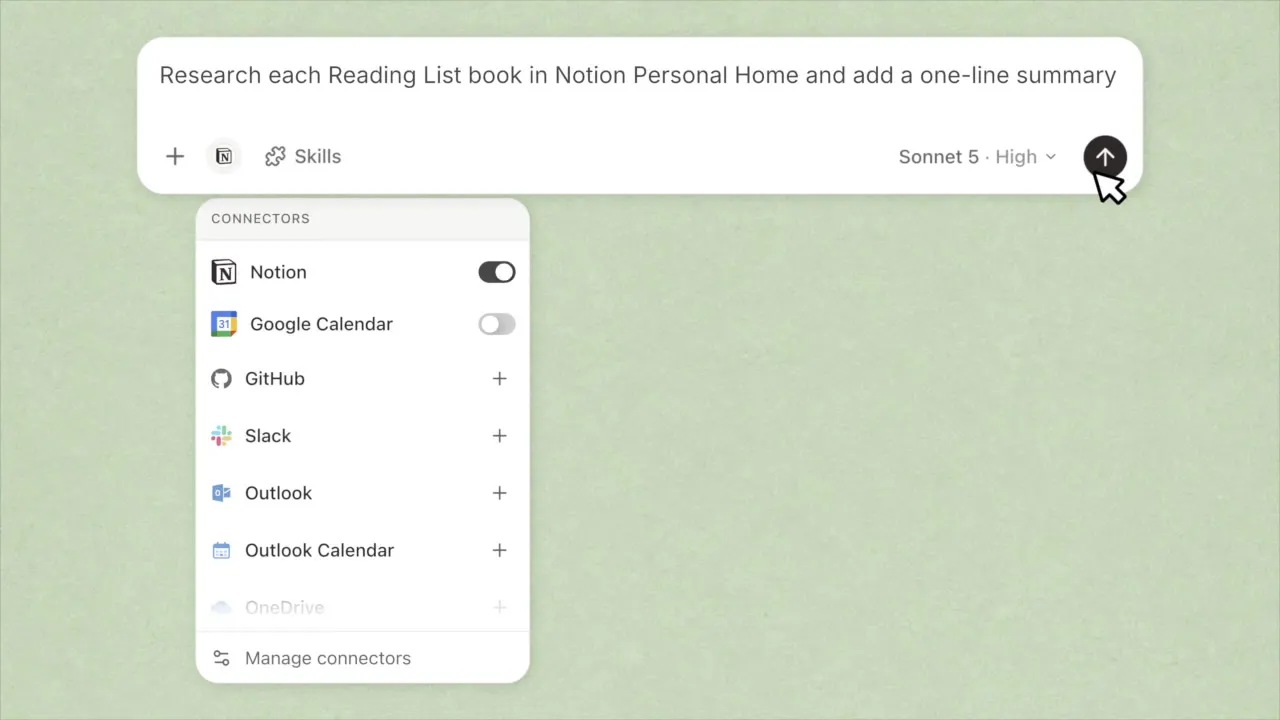
Flip the Notion toggle, hit send. Authorization runs through Notion's own sign-in — Happycapy sees only the pages you allow.
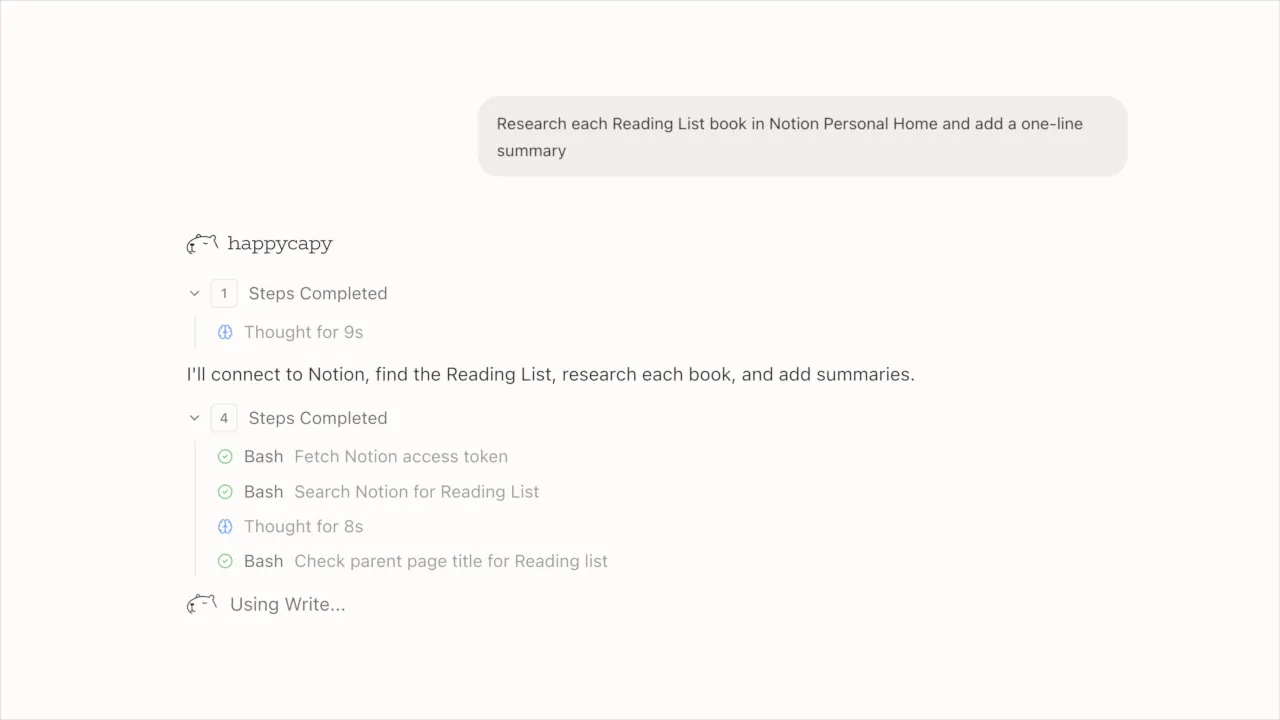
It works in the open: thinking time, steps completed, which tool it's on — reported as it runs.
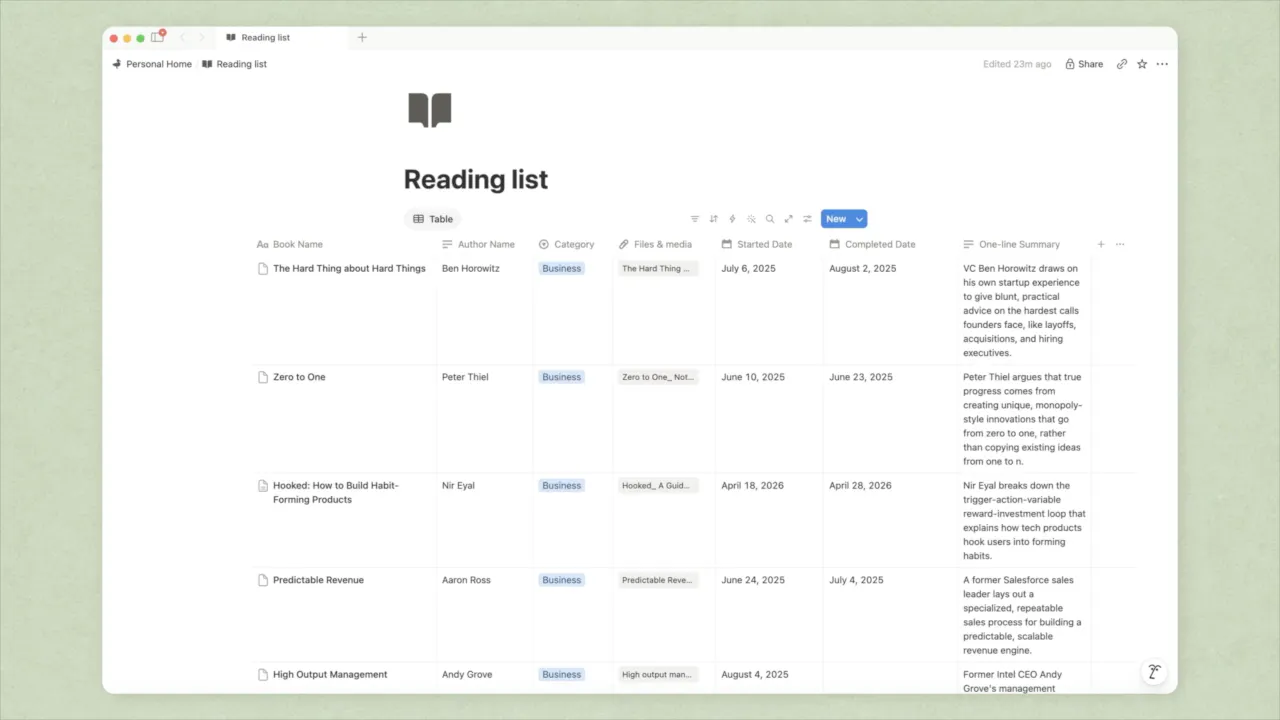
You go refill your water. By the time you're back, the reading list can introduce itself — one summary per book, written into the cell where it belongs.
Example 2: Buy back the most expensive hour of your day (GitHub + Slack + Calendar → Notion)
Every morning starts the same: check GitHub for what happened overnight, climb through Slack, glance at the calendar — an hour gone before any real work starts. Hand the whole routine over. Connectors team up on a single task, and with a schedule attached, you don't even have to ask:
"Every weekday at 8:55 — check overnight GitHub activity and #product on Slack, cross-check today's calendar, and post a digest to my Notion."Example 2: Buy back the most expensive hour of your day (GitHub + Slack + Calendar → Notion)
Every morning starts the same: check GitHub for what happened overnight, climb through Slack, glance at the calendar — an hour gone before any real work starts. Hand the whole routine over. Connectors team up on a single task, and with a schedule attached, you don't even have to ask:
"Every weekday at 8:55 — check overnight GitHub activity and #product on Slack,
cross-check today's calendar, and post a digest to my Notion."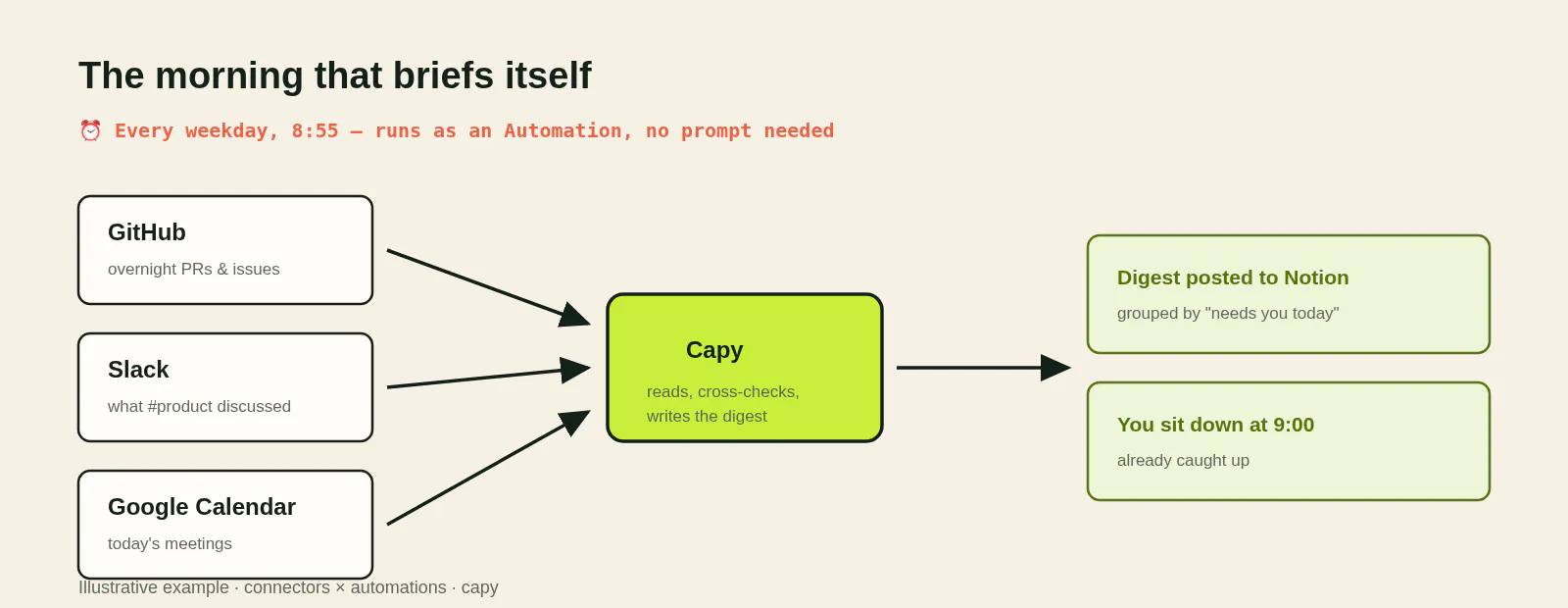
What lands in Notion — example
Tue Aug 12 · Needs you today
· PR #481 approved overnight — waiting on your merge
· Nina asked in #product whether the pricing page ships this week
· 2:00pm Northwind call — proposal thread summarized below
From then on, when you sit down at 9:00, the things that need you are already standing in line.
Example 3: The end of the frantic ten minutes before a meeting (Outlook + OneDrive)
Digging through email for context ten minutes before a call is a workplace tradition nobody asked for. Cancel it:
"Before my 2pm with Northwind — pull the latest thread from Outlook, the current deck from OneDrive, and give me a one-page brief."The brief — example
Northwind · where things stand
· Last email (Aug 10): Dana asked for updated rates by Friday
· Deck v4 on OneDrive: pricing slide still shows July numbers
· Watch out: their renewal lands during their code freeze
Three tools, one sentence, and you walk in holding all the context. The Friday status update works the same way — Jira tickets plus GitHub commits, compiled and posted to the team channel. Set it once and it stops being your job.
Example 4: Empty the digital junk drawer (your own computer)
Every computer has one: screenshots, invoices, installers nobody deleted, a file named "untitled" — all piled in one folder. This chore lives outside every app, which is why Happycapy has a layer no other agent does: paste one command and your Mac, Windows, or Linux machine is connected. Happycapy can organize files, run scripts, and edit documents right where they sit.
"Tidy up this folder — group by type, and don't delete anything without asking."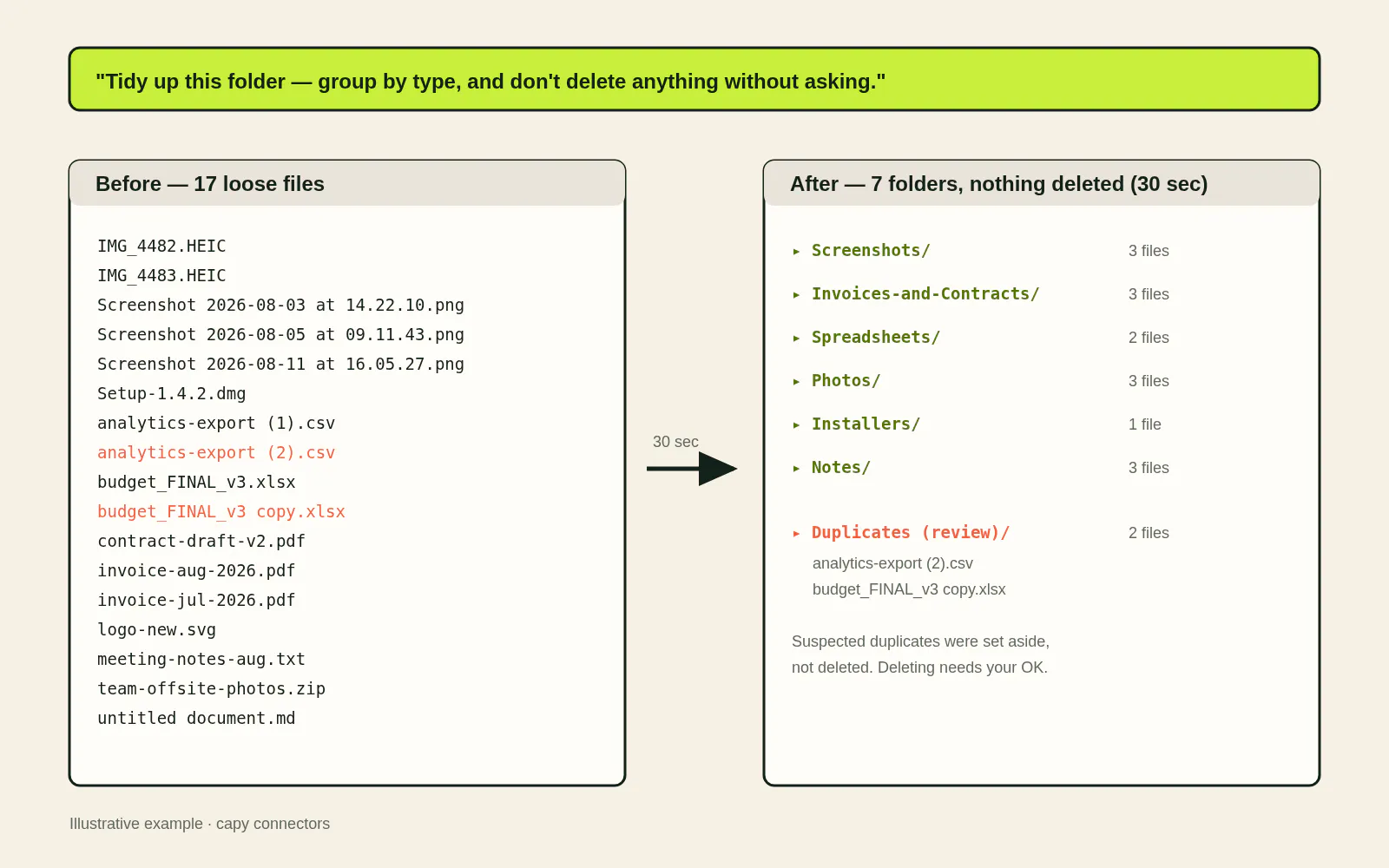
Check the last folder: the suspected duplicates weren't deleted — they went to a review folder to wait for your yes. Quick hands, good manners.
Example 5: Negotiation threads that climb themselves (Capy Mail)
A three-round negotiation thread means re-reading the whole thing before every reply. Stop climbing — Happycapy has its own email address, ready out of the box. Forward it the thread:
"Summarize this back-and-forth with the supplier, and draft a reply that accepts their payment terms but pushes back on the final installment."What comes back to your inbox — example
Draft ready · Re: Q3 supply contract
· Three rounds summarized: they moved on shipping and payment terms, held firm on the final installment
· Reply drafted along your line — edit it or don'tThe summary and the draft come back to your inbox, where the conversation already lives. The send button stays yours.
What you can connect today: nine apps, an inbox, and your computer
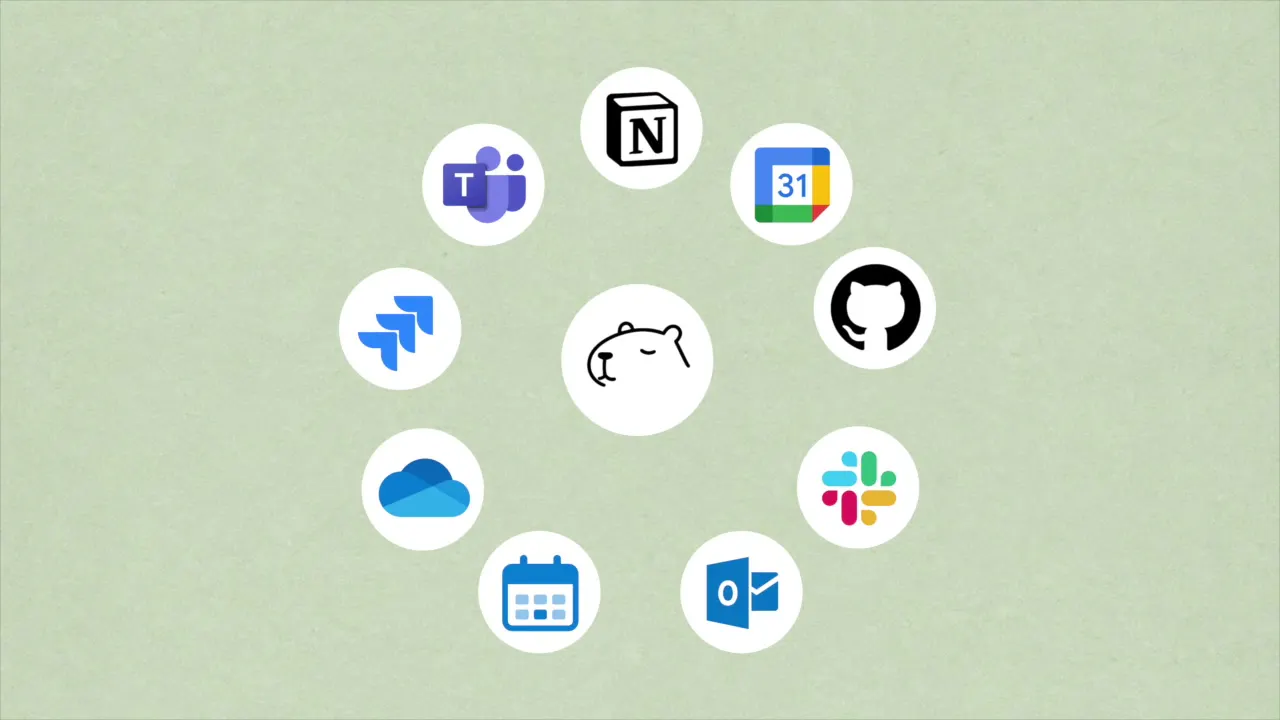
The roll call — every one of them a place you probably live in already:
Notion — search pages, query databases, read and update your workspace for you
Google Calendar — check your schedule, create events, move meetings, send invites
GitHub — read code, commit, open PRs; you pick which repositories it manages
Slack — catch up on channels, search messages, reply as you
Outlook & Outlook Calendar — search mail, draft replies, book and move meetings
OneDrive — find files, create and edit documents
Microsoft Teams — read chats and channels, post for you
Jira — read issues, file new ones, update status
Add your inbox (Capy Mail) and your own computer (Mac, Windows, or Linux), and you get three layers: apps, email, and your machine. Wherever your work lives, Happycapy can get there.
Tool not on the list? If it speaks MCP — the same open standard Notion and GitHub use — hand Happycapy the setup details and it wires itself up. Internal CRMs, ticketing systems, that ancient in-house API: same deal. The list only grows from here; making friends is what capybaras are famous for.
Connecting takes three steps at most
Apps: Settings → Connectors, flip the toggle, sign in on the app's official page. About a minute.
Your computer: same page, "Connect a computer" — paste one command into Terminal, hit enter.
Email: nothing to set up. Forward the task to your Happycapy address.
Everything you allow, nothing more
Letting an AI agent into your workspace is in the same league as handing someone your house keys. So no fine print here — just the rules, stated plainly.
You decide which keys, and which doors. Every app connects through its own official sign-in, and the grants are specific: GitHub asks which repositories to hand over; Slack tells you outright that it will send messages as you — that door opens only if you open it. Notion can't see your Slack, your calendar can't touch your code. Whatever you didn't connect simply doesn't exist for Happycapy.
Your computer gets the strictest rules of all. Happycapy operates inside your home folder only; system files are out of reach. Destructive commands are blocked by the local bridge on your machine, before they ever run. And the rules you set in plain words — "don't delete anything without asking" — are taken literally.
Everything on the record. Every action is narrated in plain language as it happens. Watch it work, or don't — and stop it whenever you like. Done with a connector? Apps disconnect in a click; your computer unplugs with one command. Clean break.
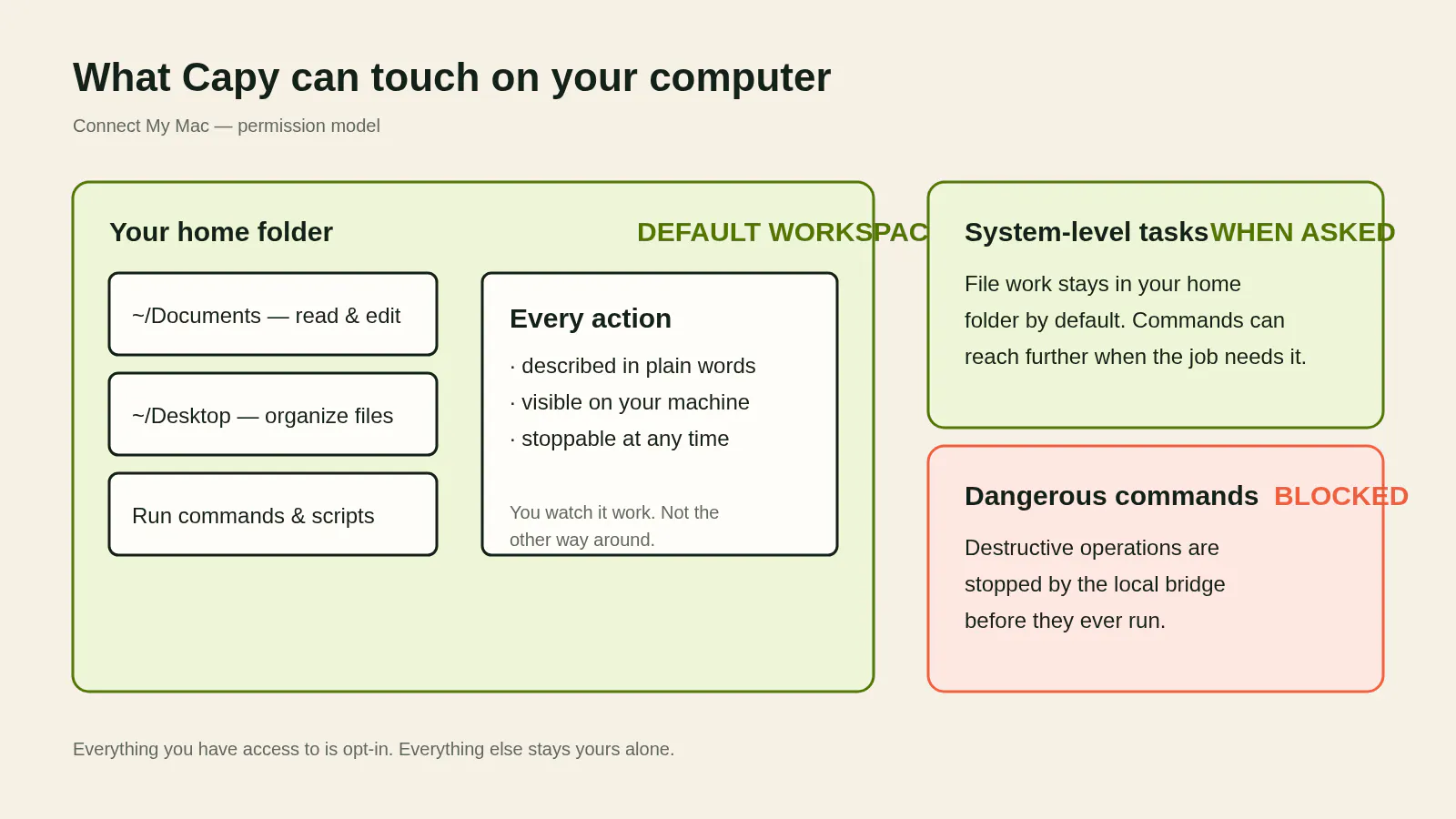
Transparency isn't our compliance language — it's the product's personality. An agent that wants to work where you work owes you a running account of what it's doing. That's what "AI that adapts to you" looks like when the stakes are real.
Start with one
You don't need to connect everything on day one — capybaras don't rush anyone, and neither does this product. Pick the one chore you hate most, connect what it needs, and let it earn the next one:
Mornings lost to catch-up → connect GitHub + Slack + Notion, and the brief arrives on schedule
A calendar that runs you → connect Google or Outlook Calendar, and rescheduling becomes one sentence
The frantic scramble before meetings → connect Outlook + OneDrive, and the brief is waiting
An inbox piling up → connect nothing at all; just forward the thread to Capy Mail
A downloads folder you're afraid to open → connect your computer, and one sentence cleans it up
Week one, you'll probably give it small jobs, just to see. Week two, the schedules go on. Then one morning in week three you'll sit down at 9:00 sharp, look at a to-do list that's already sorted itself, briefly remember the person who used to climb through Slack by hand — and connect one more.
The switch is in Settings → Connectors, live today. Your AI is already smart enough. Try Happycapy Connectors today.
Replies
I like that the computer connector has a local bridge and blocks destructive commands before they run. That part caught my attention.
Happycapy
@daniel_carter19 Yeah same, that part stood out to me too.
okay, this is actually useful.
Happycapy
@bouzadamanuel0934 Thank you
The AI has nowhere to work line is actually pretty accurate. i spend almost as much time moving AI output between tools as i do generating it.
Happycapy
@alira_salu yes exactly
I would love the meeting brief one. i have definitely opened a call and spent the first five minutes trying to remember what happened in the previous email thread.
Happycapy
@manjesh_yadav1 every meeting starts with a tiny detective phase