

Introducing Document Templates: Generate User Guides, SOPs, Release Notes, and More From Recordings

Every documentation task has a different audience and purpose. A user guide for customers reads nothing like acceptance criteria for developers or an SOP for operations.
We built Document Templates so you can tell Easy Scribe exactly what kind of document you need before generation even starts. Pick a template, record or upload your walkthrough, and get a draft structured for the right context from the very first pass.
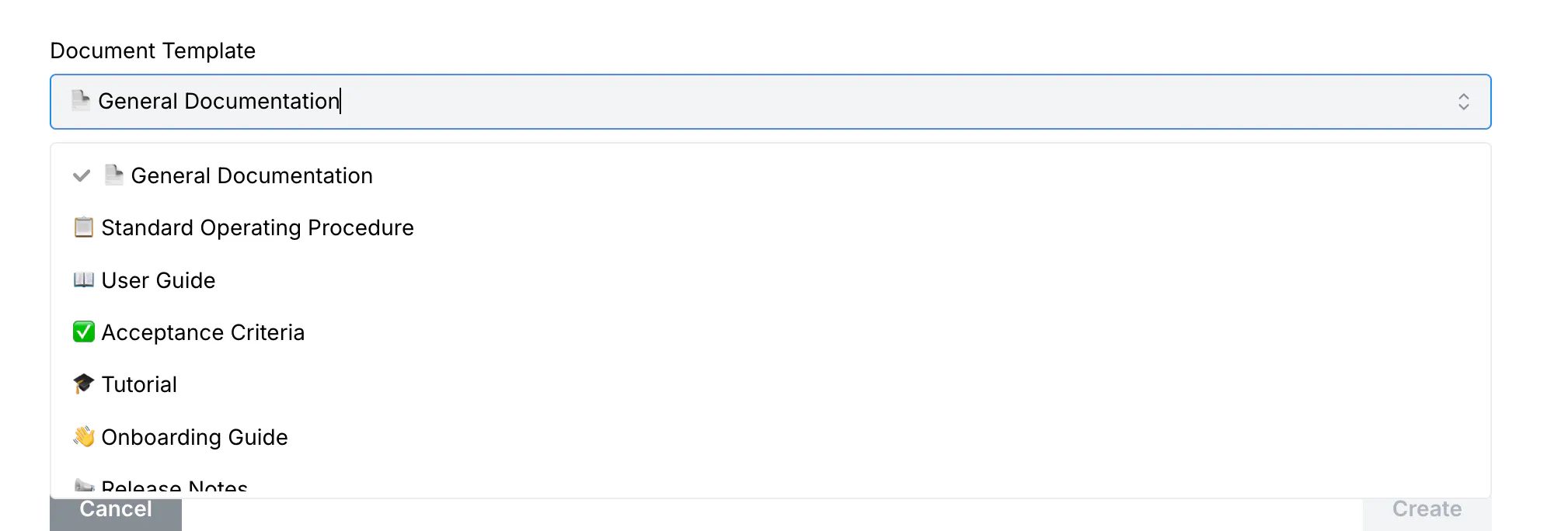
The templates and what they are for
Here is what each template is designed for and which teams benefit most:
General Documentation: Flexible default for internal reference and quick how-tos.
User Guide: Task-focused output written for end users.
Standard Operating Procedure: Sequenced steps for repeatable processes.
Acceptance Criteria: Testable requirements, built for developers and QA.
Tutorial: Learning-oriented content for onboarding courses and feature deep-dives.
Onboarding Guide: First-time-user content focused on time-to-value.
Release Notes: Audience-facing changelogs from a feature walkthrough.
Troubleshooting Guide: Symptom, cause, fix structure to reduce support tickets.
How to use document templates
Getting started takes less than a minute. Here is the full workflow.
Open the Library page and click + New Document.
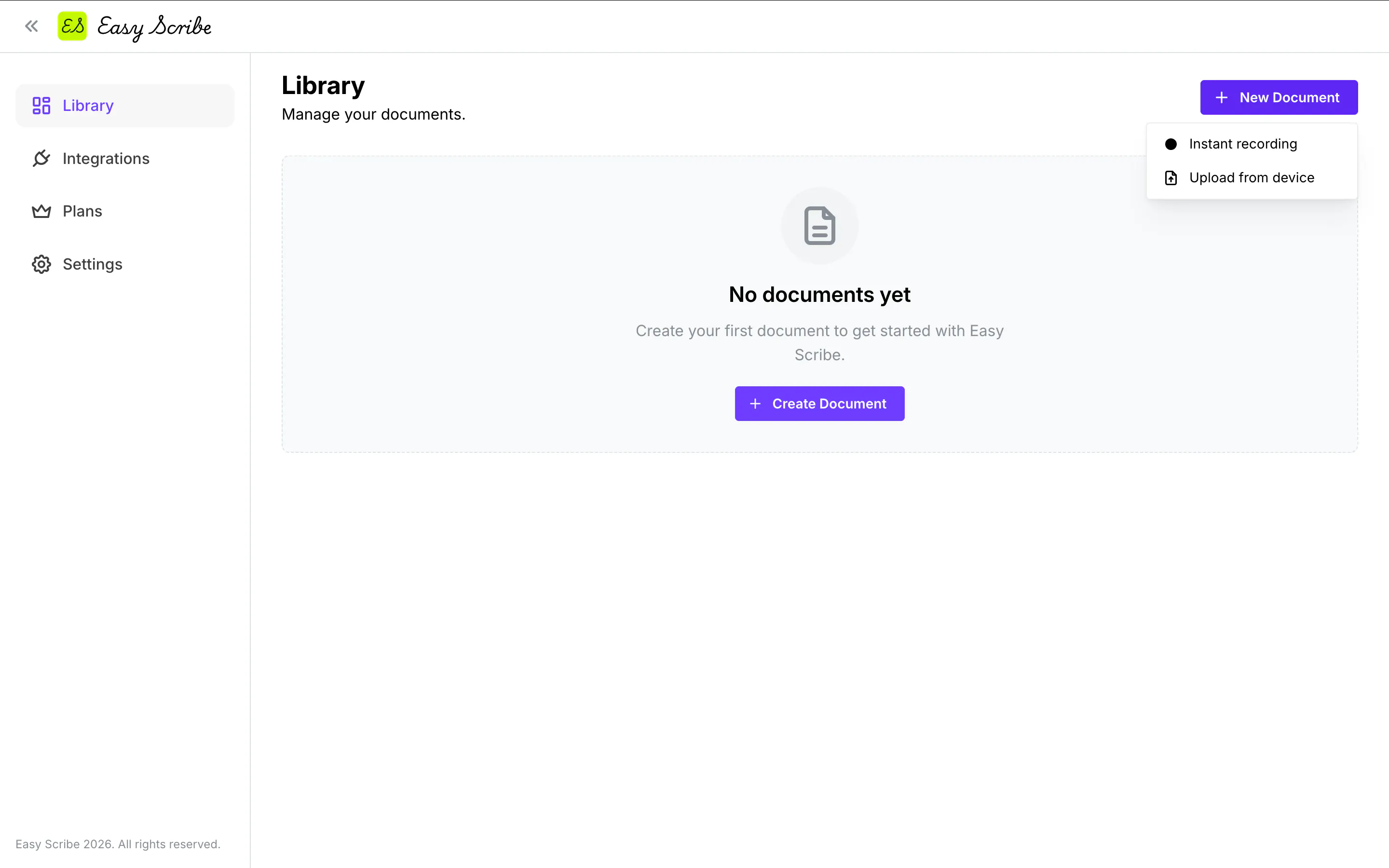
Choose Instant recording to record your screen right in the browser, or Upload from device to use an existing video.
On the New Document page, enter a descriptive Title (for example, "Onboarding: Create a team project").
Open the Document Template dropdown and select the template that fits your audience and purpose.
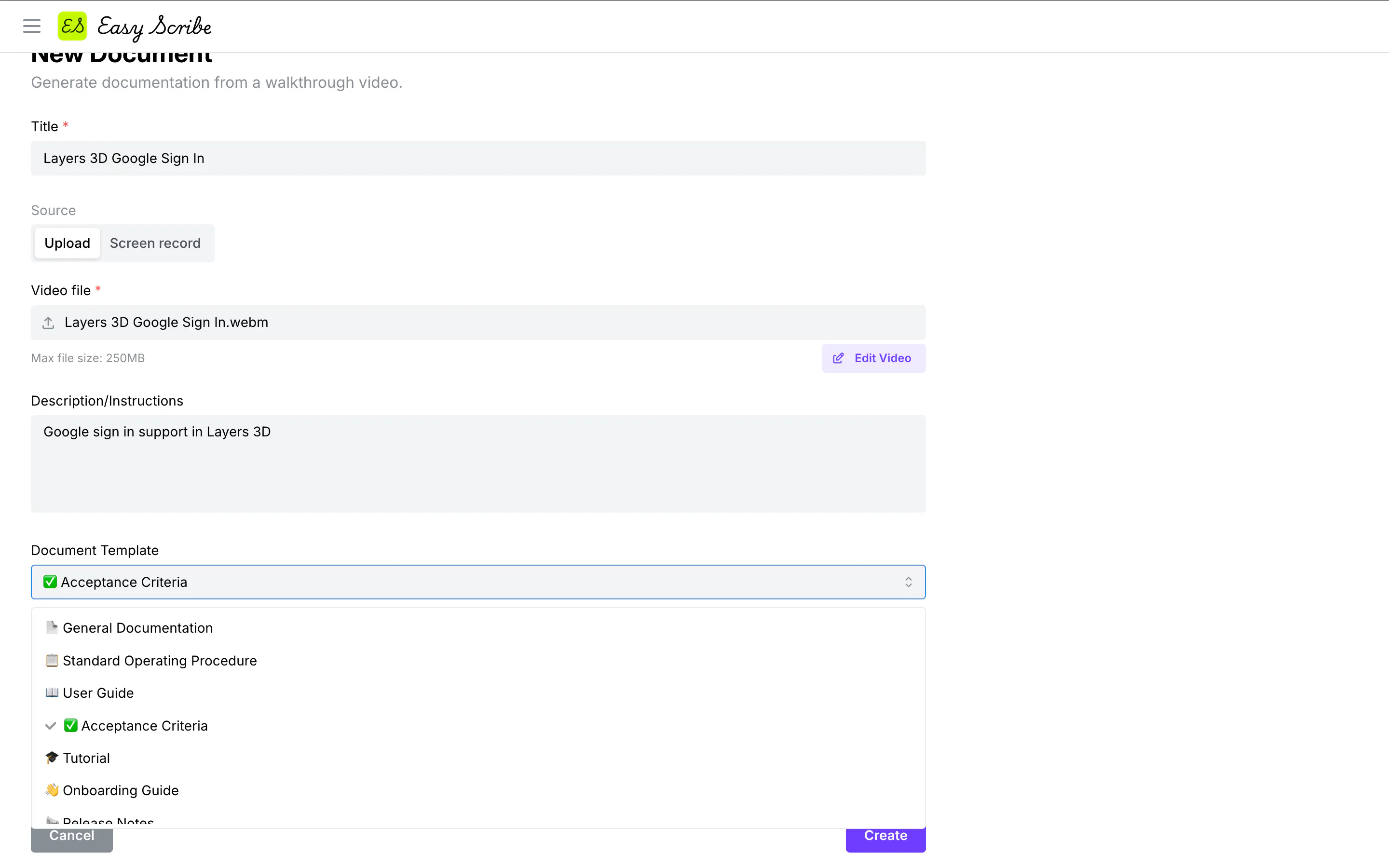
Set Document Language to Auto (recommended) or choose a specific language.
Optionally, add Description/Instructions to steer the structure and focus of the generated output.
Click Create.
Easy Scribe generates a structured, captioned, step-by-step guide with contextual screenshots pulled from your recording, all shaped by the template you selected.
Learn more about the release on our blog and try out the application at https://www.easyscribe.guide/
Replies