
NaïveChat
Efficient daily AI
2 followers
Efficient daily AI
2 followers
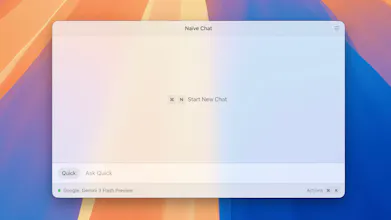
NaïveChat - The Efficiency AI Chat App


Free
Launch Team / Built With


AWS Startup AdvisorPersonalized AWS guidance that meets you where you’re already building
Promoted
2 followers
2 followers
As a happy Raycast user, I love its design and details — the best in the market. But the AI Chat part always feels a bit off. That's how NaiveChat was born. I take the best parts of Raycast and enhanced all the pain points, making it a efficient app for daily chatting, an quick AI layer on top of your works.
Visual Accuracy
Powerful features baked into minimal interfaces.
Minimalist UI: Clean by design, yet optimized for massive message volumes, long conversations, and complex branching.
Dark Mode: Dark mode should not be excessively dark or feature harsh text. NaïveChat's carefully tuned contrast ensures it doesn’t hurt your eyes when you brings it up in the late night.
Screenshots: Capture your messages in full-window or mobile-view to share with the world.
Zen Mode: After familiarizing yourself with the hotkeys, features, you can hide tooltips and UI hints for an even more focused experience. Turn on Zen Mode in Settings -> General -> Appearance.
Input Magic
All things you can do from the input box, with your keyboard.
`/`(Slash): Trigger a preset search.
Pro Tip: When only one preset remains in the filtered menu, it's auto applied. You can build muscle memory to quickly switch presets by typing / followed by a few characters of the preset name.
`TAB`: Switch to the next preset (or Shift + TAB for the previous one).
Pro Tip: You can reorder presets in the settings. Because every new conversation starts with the "Default Assistant" (preset) and you can use Backspace to return to it from any other preset, the Default Assistant acts as a "home base." This allows you to jump to nearby presets and back again using, again, muscle memory.
`Opt + TAB`: Cycle through favorite models.
`Arrow Up/Down`: Browse through input history.
`Cmd + P`: Edit current preset on the fly.
These shortcuts are designed to keep you in the flow of conversation without reaching for the mouse, and to handle lots of presets, models, and complex conversations which you explore in various ways.
Yes, NaïveChat works best with OpenRouter or Vercel AI Gateway, this pairing provides a wide variety of models, giving you the flexibility to explore complex conversations.
Complex Conversations
Conversations with AI are rarely linear, they are mind maps. Traditional chat apps "copy" original conversations as "branch chat", causing you to lose the connection between them and cluttering your history. NaïveChat keeps it as it should be, a mind map.
Regenerate: Generate a new response (often with a different model or preset) based on your current selection.
Branch from: Create a new follow-up message from any response.
Branch Map: Use this visual mind map to navigate complex conversation trees and select the active path. Press CMD + J to open the Branch Map view.
Hotkey Driven
NaïveChat is designed from ground up for full keyboard operation:
Global Activation: Summon NaïveChat instantly with a global hotkey.
Preset Global Hotkeys: Set specific hotkeys for different presets if you need more than one quick access point.
Hotkeys with Predefined Prompts: Trigger NaïveChat with a specific preset and auto send a predefined prompt. Use the {SELECTED_TEXT} or {CLIPBOARD_TEXT} placeholders to inject text. This allows you to create a seamless workflow across different apps. Configure these in Settings -> Presets.
Keyboard-First Design: NaïveChat respects your muscle memory, featuring intuitive h/j/k/l navigation for branch maps and Ctrl+Up/Down for menu lists. Prefer a different layout? All hotkeys are customizable to suit your workflow.
Combining all these features, NaïveChat serves as an efficient layer on top of your daily workflow. Summon it, chat, and get back to what you were doing. When you need to dive deep into conversations as a true explorer, NaïveChat has you covered too.