
Glideo
Screen recordings that edit themselves
250 followers
Screen recordings that edit themselves
250 followers
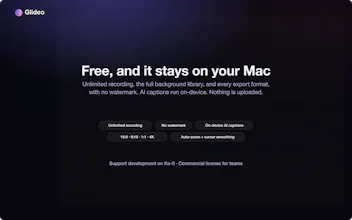
Glideo is a free macOS screen recorder built for product demos and dev tools. It turns raw screen recordings into polished demo videos: the camera zooms toward your clicks automatically, with no keyframing. Same automatic zoom that follows your clicks and cursor. Same polished output. Same "this looks way better than a raw screen recording" result, without a price tag. No trial. No watermark. No catch.




How does the auto-zoom handle recordings where you switch between apps quickly or jump around the screen a lot?
@tahsinyndat2js It makes an attempt to create smooth transitions between different windows until you get to a good focus spot on a main interaction of a feature like menu interaction / dragging / highlighting. It might try to smoothly glide between both, but the next part of the roadmap is figuring out how to adequately do multi-window view without too much hassle!
how does the auto zoom know when to start and stop, like does it trigger only on clicks or does it also follow my mouse movement?
@arzukanbrec5ro Yes, it does both! It registers core events to then attempt to generate a solid sequence of zooms and transitions to match the behavior!
How does the auto-zoom handle recordings where I jump between windows or apps quickly? Curious if it gets confused and starts zooming into the wrong spot.
@erifeuanoljom2 Jumping between windows and apps needs a little more finesse but it captures the focus on different windows fine! It will make smooth transitions between all your clicks until there is a resounding interaction that you showcase for longer periods.
How well does the auto-zoom hold up when you're switching between windows or apps quickly during a demo, and can you fine-tune the zoom intensity if it's too aggressive on smaller UI elements?
@zmraahmetomizk Yes, you absolutely fine-tune the zoom intensity by clicking on the zoom segment and increasing the value on it or decreasing on it if it's too aggressive! Depending on the display you're capturing as well, it is pretty seamless to start focusing on another window. Another thing in the roadmap is switching attention between windows being improved in terms for quality of life and viewing!
This looks handy for product demos. One question: can the auto-zoom be turned off or overridden for specific segments, for moments where I'd rather keep the full screen steady? And can text captions or callouts be added, or is it purely camera motion? Thank you for keeping it free and local :)
@alieksia Absolutely! After a recording, auto-zoom can just be deleted for segments where you don't want it. I may go back and look at perhaps live-recording keystrokes that can indicate that too. Text captions and callouts are a feature that exists in the application currently too!
Auto-zoom toward clicks is built around cursor events, so I'm curious how it behaves on an iPhone simulator recording where the "cursor" is a tap that doesn't exist between touches. That's my actual use case, App Store previews cut from simulator captures, and every tool I've tried treats it as a screen recording problem when it's really an attention problem. Local-only processing is the right call regardless.
@narek_keshishyan If you're doing the iPhone simulator on the Mac, one of the videos on the page showcases usage of an iPhone simulator (I left the whole screen in but you can crop as you see fit for the display recording). It detects "taps", drags and interactions just the same since you're using a mouse interface, but if you're talking about using an actual iPhone display, that will be something I will look into for next development!
The auto-zoom-on-clicks is exactly the hour I lose hand-keyframing every demo, so that is the part I would test first. When the auto motion misjudges a moment and I drag or retime that zoom segment, does my edit survive if I re-record just one section later, or does the timeline assume a single continuous take? And on export, can I pick resolution and format, or is it one fixed output?
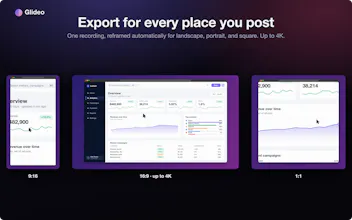
@leo404 Currently there is no-rerecording on the same timeline, but you can absolutely make cuts (it already has a feature to cut detected deadtime with silence / no activity), and re-order zoom segments. Since it's early access, I absolutely look into multi-clip recording into a single timeline! Also, the export has a wide variety of resolutions + formats that typical platforms like Youtube / Shorts takes and also some ones in between!
Good to know cuts and zoom re-ordering are already in, and auto-cutting deadtime kills the tedious part. The one thing I'd pin down for real edits: if I manually retime or delete an auto-generated zoom and then cut deadtime or re-run the auto pass, does my manual tweak survive, or does re-detecting overwrite the keyframes I set by hand? That's usually where "it edits itself" tools quietly cost back the time they saved.