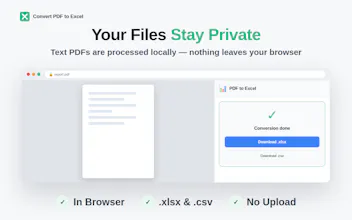
Convert PDF to Excel is a free Chrome extension that turns any PDF into a clean, editable spreadsheet in one click. Text-based PDFs are parsed instantly and locally, so nothing leaves your machine. Scanned or image PDFs get AI-powered table extraction over HTTPS. Export to Excel or CSV with columns and rows kept intact. Great for invoices, bank statements, reports, and price lists. No login, no size limits, no subscription.
No reviews yetBe the first to leave a review for Convert PDF to Excel
Maker
📌
Hey Product Hunt 👋
I built this because I was tired of copy-pasting tables out of PDFs by hand — invoices, bank statements, reports, the usual mess. Every online converter either wanted to upload my files somewhere I didn't trust, or fell apart the moment a PDF had more than one table on a page.
How it works:
– Native PDFs (with a real text layer) are parsed locally, right in the browser — nothing gets uploaded
– Scanned or image-based PDFs go through AI-powered OCR over HTTPS — files are processed and immediately discarded, never stored
– Multi-page documents export into one clean .xlsx or .csv, all pages merged automatically
– No account, no subscription — AI mode gets 5 free conversions/day, everything else is free with no limit
It's a solo project and still evolving. Would love feedback — especially if you've got a nasty PDF (weird columns, merged cells, a scan from a fax machine) that trips up the table detection. Throw it at it and tell me what breaks.
Try it: https://chromewebstore.google.co...
Report
Congrats on the launch, Denis! You mentioned other converters fall apart when a page has more than one table — how does yours handle several tables on one page: separate sheets, or stacked into one? Love that the whole thing stays local for text PDFs. Great launch!
Report
Maker
@andrei_rebrov1 Thanks, Andrei! Right now it stacks: each PDF page becomes one sheet, and everything on that page (including multiple tables) lands in one grid based on x/y position, so it follows the original layout instead of getting jumbled. For scanned PDFs the AI mode actually detects individual tables and can split them into separate sheets, that same option for text PDFs is on my list. Appreciate the kind words on the launch!
Report
@welders_don Makes total sense — anchoring cells by x/y position so the sheet mirrors the original layout beats trying to guess table boundaries. And nice that AI mode already splits detected tables into their own sheets; that’ll be great once it reaches text mode too. Thanks for the detailed reply, Denis — congrats again on the launch! 🎉
Report
Maker
@andrei_rebrov1 Thanks, Andrei! Depends on the mode. In AI mode (used for scanned or messy PDFs), each detected table gets its own worksheet by default, so two tables on one page end up on separate sheets. In the standard local mode for text PDFs there's no per-table detection yet, everything on a page lands in one grid, so multiple tables currently get merged onto one sheet. Splitting them there too is on my list. Appreciate the kind words on the launch!
Report
Local-only parsing is a nice touch for text PDFs, way more private than uploading them somewhere. Tried a scanned bank statement and the table extraction came out clean enough to skip manual cleanup.
Report
Maker
@derinbornoksyj Glad it worked well, Derin! Quick clarification for anyone reading this thread: native text PDFs are parsed 100% locally in the browser. Scanned docs, like your bank statement, go through the AI mode over HTTPS since OCR needs that, but files are processed and discarded immediately, nothing gets stored. Thanks for stress-testing it!
Report
Local parsing is a nice touch, especially for sensitive work docs. Popped a 40-page report through it and the table detection nailed the headers on the first try.
Report
Maker
@kayrahyua Thanks, Kayra! Glad the headers held up, that's usually where things break on long reports. Tip: multi-page exports merge into one file automatically, so no manual re-stitching needed.
Report
The amount of my life lost to retyping numbers out of documents by hand is frankly embarrassing. Anything that spares me that becomes an instant friend. Looks really handy, @welders_don.
Report
Maker
@jean_noel_escande Thanks Jean-Noël! That pain is exactly why I built it - I used to retype numbers from inspection reports for hours. If you try it on a real doc, let me know how it handles yours, always tuning accuracy based on real cases.
Congrats on the launch, Denis! You mentioned other converters fall apart when a page has more than one table — how does yours handle several tables on one page: separate sheets, or stacked into one? Love that the whole thing stays local for text PDFs. Great launch!
@andrei_rebrov1 Thanks, Andrei! Right now it stacks: each PDF page becomes one sheet, and everything on that page (including multiple tables) lands in one grid based on x/y position, so it follows the original layout instead of getting jumbled. For scanned PDFs the AI mode actually detects individual tables and can split them into separate sheets, that same option for text PDFs is on my list. Appreciate the kind words on the launch!
@welders_don Makes total sense — anchoring cells by x/y position so the sheet mirrors the original layout beats trying to guess table boundaries. And nice that AI mode already splits detected tables into their own sheets; that’ll be great once it reaches text mode too. Thanks for the detailed reply, Denis — congrats again on the launch! 🎉
@andrei_rebrov1 Thanks, Andrei! Depends on the mode. In AI mode (used for scanned or messy PDFs), each detected table gets its own worksheet by default, so two tables on one page end up on separate sheets. In the standard local mode for text PDFs there's no per-table detection yet, everything on a page lands in one grid, so multiple tables currently get merged onto one sheet. Splitting them there too is on my list. Appreciate the kind words on the launch!
Local-only parsing is a nice touch for text PDFs, way more private than uploading them somewhere. Tried a scanned bank statement and the table extraction came out clean enough to skip manual cleanup.
@derinbornoksyj Glad it worked well, Derin! Quick clarification for anyone reading this thread: native text PDFs are parsed 100% locally in the browser. Scanned docs, like your bank statement, go through the AI mode over HTTPS since OCR needs that, but files are processed and discarded immediately, nothing gets stored. Thanks for stress-testing it!
Local parsing is a nice touch, especially for sensitive work docs. Popped a 40-page report through it and the table detection nailed the headers on the first try.
@kayrahyua Thanks, Kayra! Glad the headers held up, that's usually where things break on long reports. Tip: multi-page exports merge into one file automatically, so no manual re-stitching needed.
The amount of my life lost to retyping numbers out of documents by hand is frankly embarrassing. Anything that spares me that becomes an instant friend. Looks really handy, @welders_don.
@jean_noel_escande Thanks Jean-Noël! That pain is exactly why I built it - I used to retype numbers from inspection reports for hours. If you try it on a real doc, let me know how it handles yours, always tuning accuracy based on real cases.
Humalike
Congrats on the launch!
@mcarmonas Thank you!