Honest question, because I might have built the wrong thing.
Most project tools have an AI panel on the right side now. You open it, ask something, then paste the answer back into a task. I never got into the habit with any of them. The panel just sat there.





@wutlu can teams customize how AI agents participate in different projects ?
@dipanshu_kushwaha5 Yeah, you can. This was one of the first things I had to get right, because I didn't want to hand an agent a whole workspace on day one.
Access goes board by board. A board stays closed to agents until you open it. Inside a board, every column has its own switches: can the agent read it, can it move tasks in and out, can it leave comments. There is also a small text box per column where you write what that column is actually for. Mine says things like "only bugs I have reproduced myself go here" and the agent sticks to it.
So in the same workspace I keep a client board no agent can touch, and an internal one where Claude moves tasks around all day.
One more thing worth knowing: the agent inherits the role of whoever connected it. Read only person, read only agent.
The part about building this with AI is probably what I'm most curious about. Did you end up using your own product much while building it?
@jack_pearson33 Yeah, embarrassingly much. is.team is what I use to build is.team.
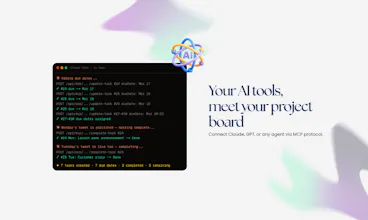
The MCP server exists because I wanted it for myself before anyone else asked for it. Claude sits on a board, picks up the next card, does the work, moves it to a column I check later. Most days my actual job is writing the card and reviewing what comes back.
It is also why some of the features exist at all. The column context field, the permission switches, the live canvas updates, all of that came from getting annoyed at my own tool while using it. Dogfooding sounds noble but mostly it is just fixing whatever irritated you an hour ago.
The canvas idea makes sense to me. I'd just be worried about it getting messy with a big project.
@aria_taylor Fair worry, and honestly it did get messy for me early on. That is why the canvas is not the only thing holding the project.
A few things keep it under control. Each board is its own canvas, so a big project splits into boards instead of one endless wall. There is a filter that strips everything down to one person, one label, one priority or one sprint, so the noise just disappears while you work. Search jumps you straight to a task, board, note or person. Loose notes can be collapsed into a stack so a corner does not turn into confetti. And there is a timeline view when you want dates instead of space.
The honest version: if you dump 400 tasks on it and never filter, it will look like a mess. Same as any whiteboard. The difference is that here you can hide things.
wait, so you can tell the agent what each column is actually supposed to be used for? That's a nice detail.
@evan_taft1 Yeah, and it turned out to be the difference between an agent that helps and one that just makes noise.
Without it the agent guesses from the column name, and "In Review" means five different things depending on the team. So each column has a context field where you write the actual rule: what belongs here, what has to be true before something moves in, who picks it up next. The agent reads that before it touches anything.
You can be blunt with it too. Something like "nothing moves in here without a linked PR" works fine. It is basically the onboarding sentence you would say to a new hire, except you only have to say it once.
I really like that the AI inherits the permissions of the person who invited it. Smart security move, congrats @wutlu 🙌
@priya_kushwaha1 Thank you. Honestly that one came from being paranoid rather than clever.
The thing that kept bothering me was the idea of an agent quietly having more access than the person running it. So it just borrows their role instead. Read only person, read only agent. And when someone leaves the team, their agent loses access with them.
It is still a young system though, so if you ever poke at it and find a hole, please tell me. I would much rather hear it from you than find out the hard way.
@wutlu Haha, paranoia definitely worked in your favor here, I’ll be sure to share any feedback as when I test it out.
Call the AI move cards around too?
@adam_nurbol27 Yes, and in two different ways.
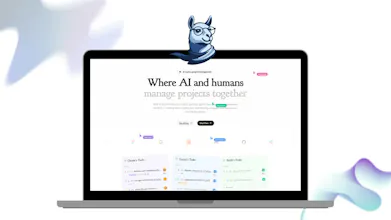
Tasks move between columns, which is the one people usually mean. But the agent can also move the cards themselves around the canvas, set their position, draw a connection between two of them, or rearrange a whole board in one call. The canvas is just data, so anything you can do by dragging, it can do by asking.
The fun part is that it happens live. Leave the board open, type something to Claude in your editor, and the cards start sliding into place while you watch. No refresh.
So yes, you can get pretty far without ever touching the mouse
How does the voice task thing work? Does it figure out the action items itself?
@grant_w1 Yes, that part is automatic. The call gets transcribed, then it pulls out a summary, the decisions and the action items on its own. You do not tag anything while you are talking, you just talk.
What it does not do is quietly create tasks behind your back. The notes land as a note on the board, and turning the action items into real tasks is one more step where you see the list, delete the junk and assign the rest. Meetings produce a lot of sentences that sound like action items and are not.
Works both ways too. Calls inside is.team get transcribed directly, and for a Google Meet, Zoom or Teams call a bot can join and bring the transcript back.