

How to Convert Markdown to Word? 3 Simple Steps
Step 1: Paste or Upload Your Markdown
Visit https://md-to.com/markdown-to-word/
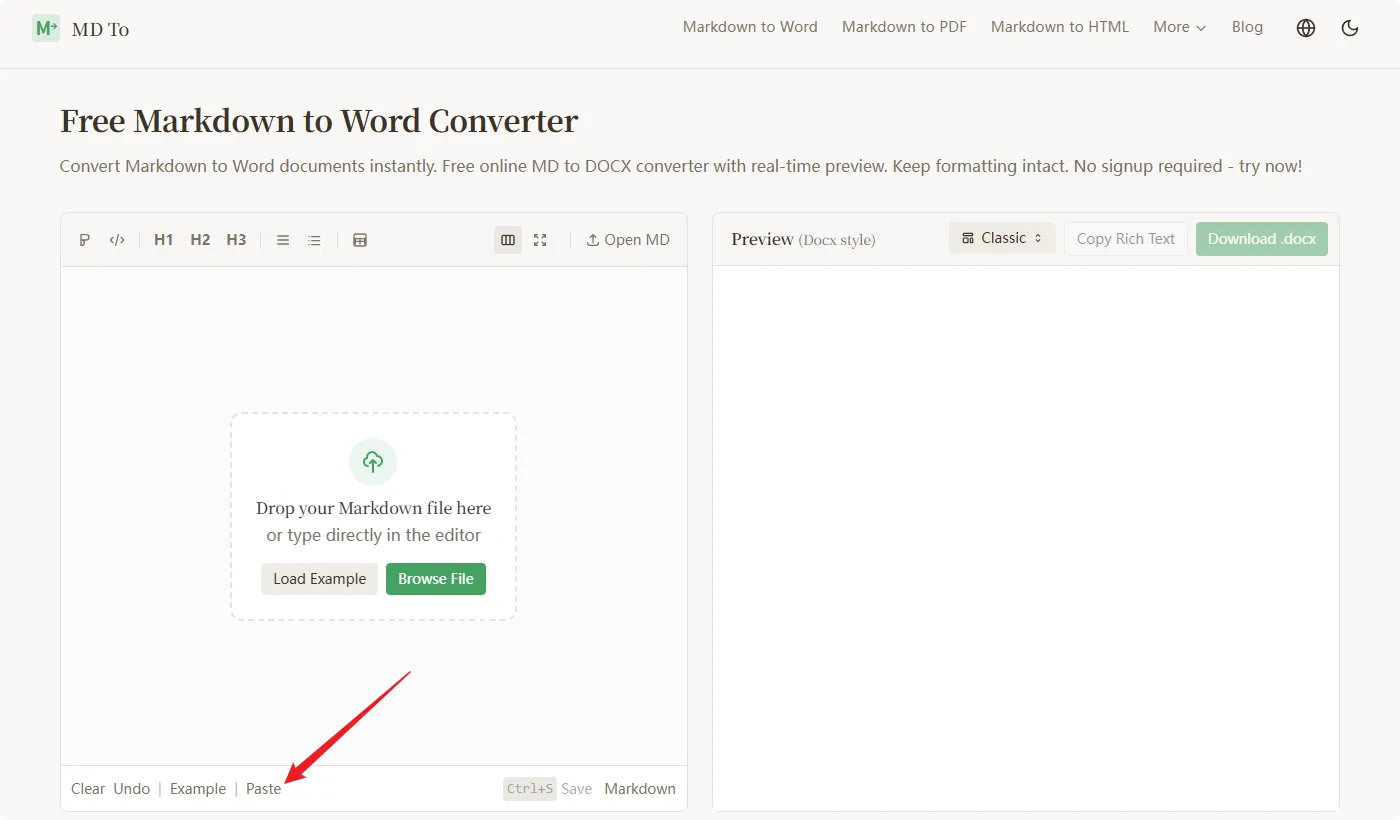
You’ll see an editor on the left. You have three options:
Paste directly: Copy your Markdown text and paste it into the editor
Upload a file: Click “Browse File” to upload a .md file
Load example: Click “Load Example” if you want to test it first
The editor supports all standard Markdown syntax. It handles them all.
Tip: If you have a large Markdown file, uploading works better than pasting.
Step 2: Preview and Choose a Template
Once your Markdown is loaded, you’ll see the preview on the right side. This is what your Word document will look like.
Now choose a template. There are 20+ options:
Business: For reports and proposals
Minimal: Clean and simple
Academic: For research papers
Tech: For technical documentation
Creative: For blogs and articles
Switch between templates to see which one fits your needs. The preview updates in realtime.
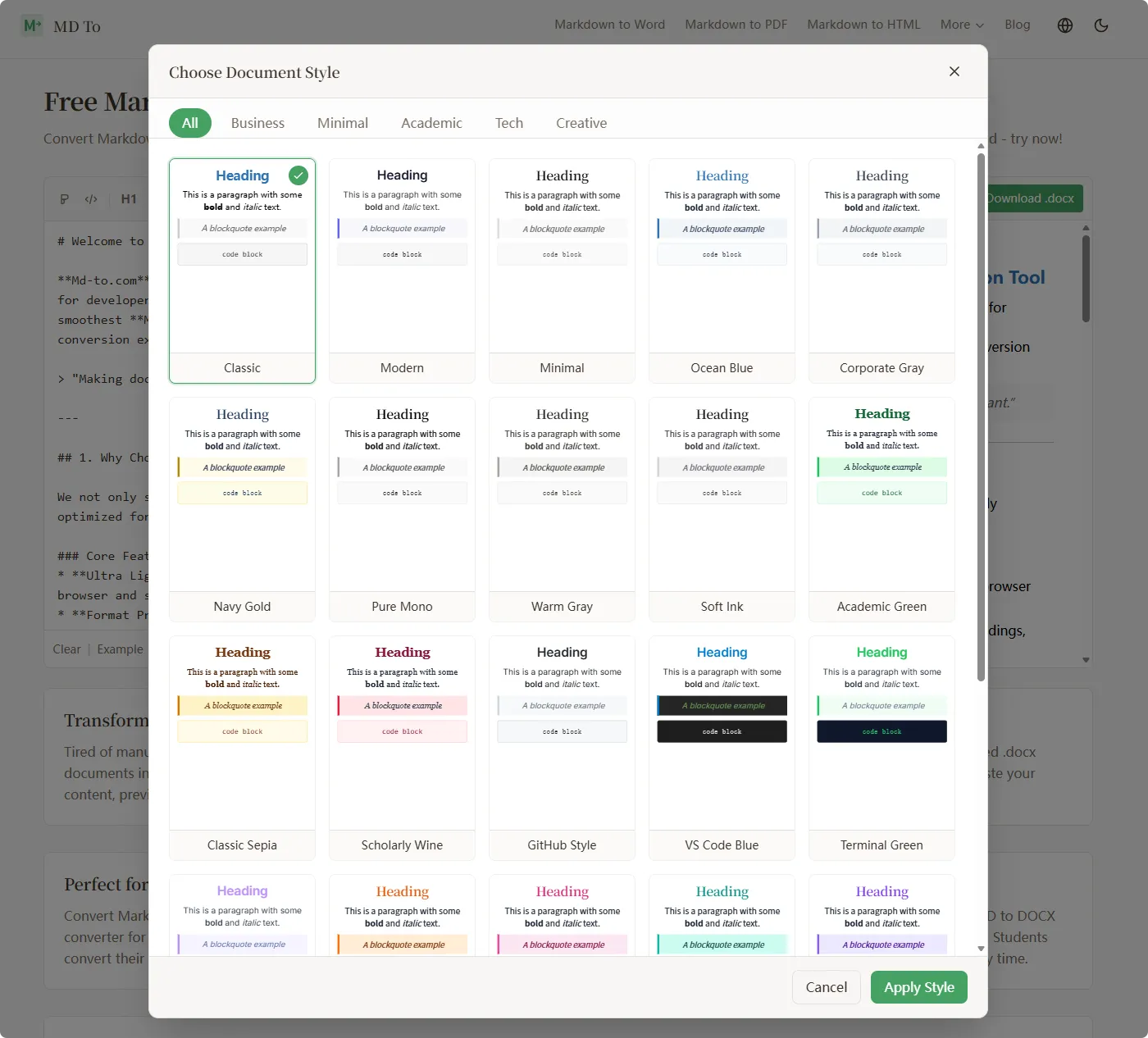
Tip: If you’re converting technical documentation, try the “Tech” or “GitHub Style” templates.
Step 3: Download Your DOCX File
Happy with how it looks? Click the “Download .docx” button.
Your Word document will be saved to your computer. You can also:
Copy rich text to paste into other applications
Save your Markdown (Ctrl+S) if you want to keep the original
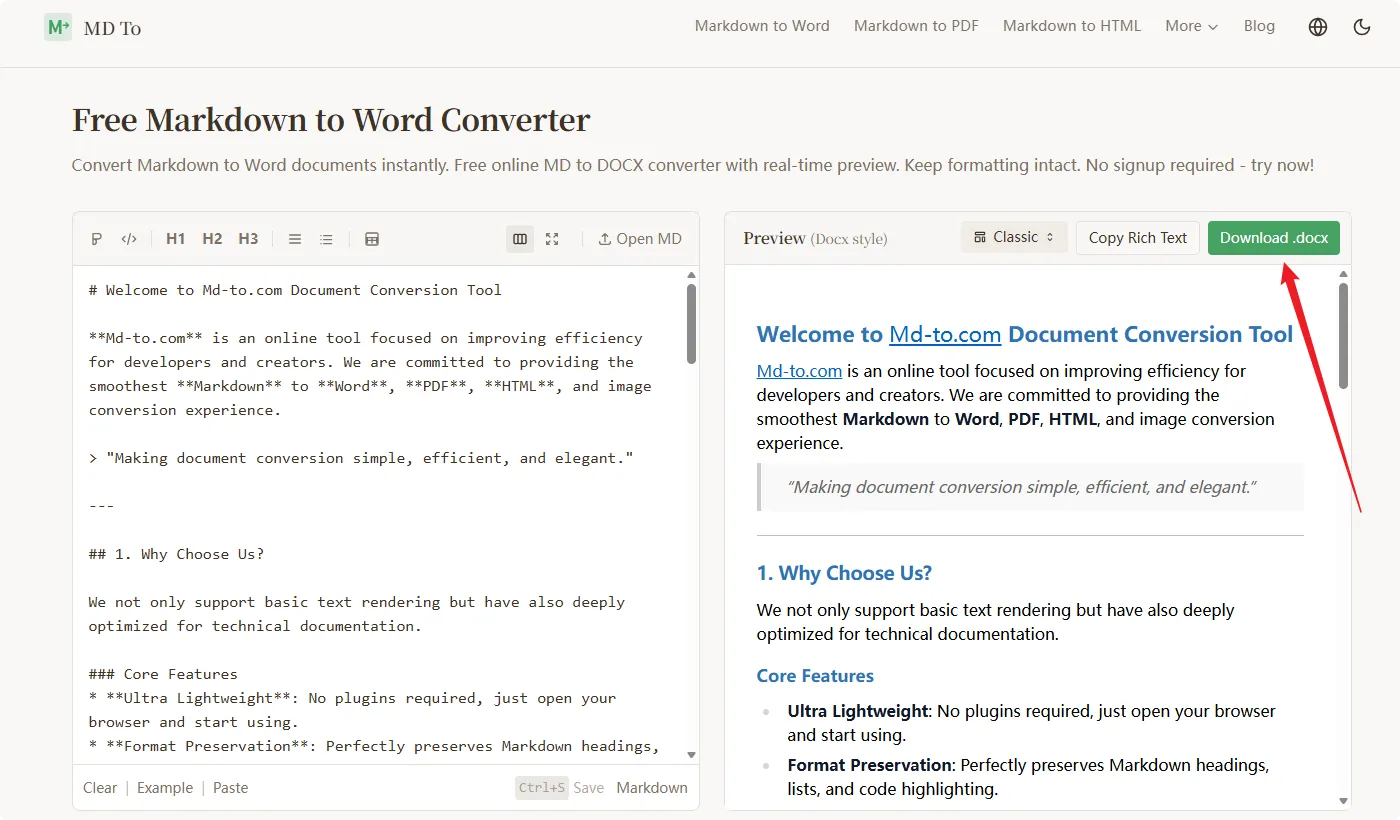
That’s it. Your Markdown is now a properly formatted Word document.
So there you have it: convert Markdown to DOCX in 3 steps.
Paste or upload your Markdown
Preview and choose a template
Download your Word document
The whole process takes about 30 seconds. No installation, no signup, no charge.
If you need to convert Markdown to Word, visit https://md-to.com/markdown-to-word/ and give it a try.
FAQ
Q: Can I edit the generated Word document?
Yes. The .docx file uses native Word styles (Heading 1, Body Text, etc.), so you can keep editing in Word.
Q: How are images handled?
If your Markdown has publicly accessible image links, md-to.com downloads and embeds them automatically.
Q: Is it really free?
Yes. No premium tiers, no usage limits, no watermarks. Convert as many files as you want.
Q: Is my data safe?
All conversion happens in your browser using JavaScript. Your files never leave your device. md-to.com can’t access your content.
Replies
Cool!