

Lock or hide any folder on Windows — offline, no account.
Windows 10 & 11 · Free download
Lock any folder.
Or make it disappear.
Two ways to keep a private folder private: lock it behind a padlock nobody can open, or hide it so it simply is not there. Both protected by your own password or Windows Hello — everything stays on your PC.
Get it from Microsoft StoreDownload .zip
No accountNo cloudNo telemetryWorks offline
100% off the internet
Password or Windows Hello
Ready from the right-click menu
16 languages
What it does
Privacy that is easy to actually use
No vault to export, no folder to convert, no cloud account to trust. Point at a folder, lock it, done.
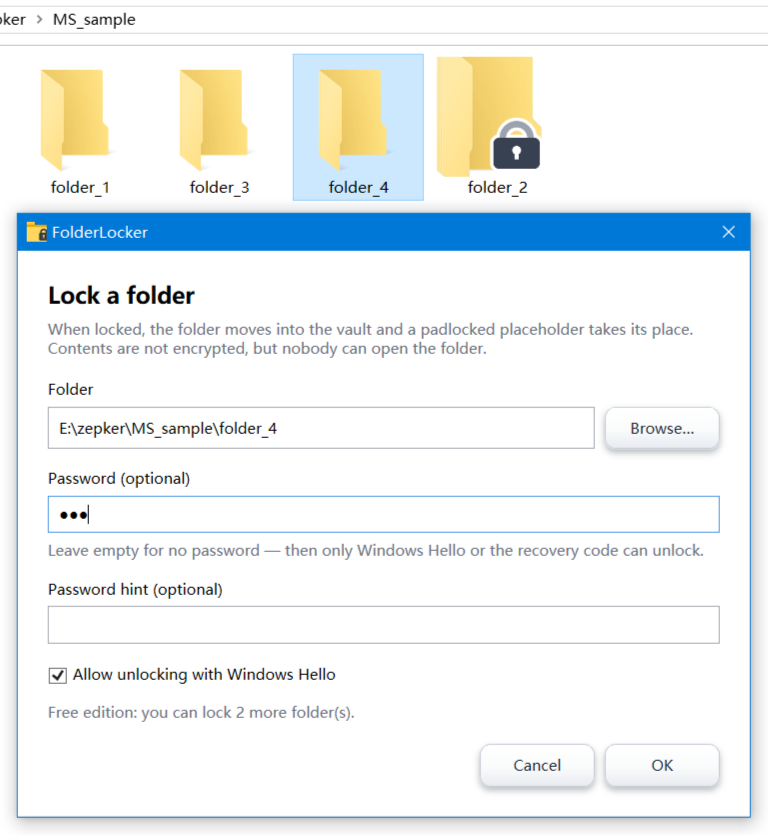
Lock in two clicks
Right-click a folder and choose Lock. Set a password once and the folder is sealed — no wizards, no waiting.
Hide, don't just block
Hiding takes the folder out of Explorer completely, so nobody scrolls past it by accident. You still get it back instantly.
Unlock with a touch
Fingerprint, face or PIN through Windows Hello. No Hello set up? It falls back to your Windows password, calmly and without errors.
Never lose a folder
A free recovery tool that finds locked folders even after Windows is reinstalled.
Offline by design
The app never phones home. No account, no analytics, no ads. Unplug the network and every feature still works.
Your language
English, 简体中文, 繁體中文, 日本語, Deutsch, Français, Español, Português, Русский, Italiano and more — 16 in total.
A look inside
Everything in one small window
See what is locked, where it came from, and how it can be opened — without digging through settings.
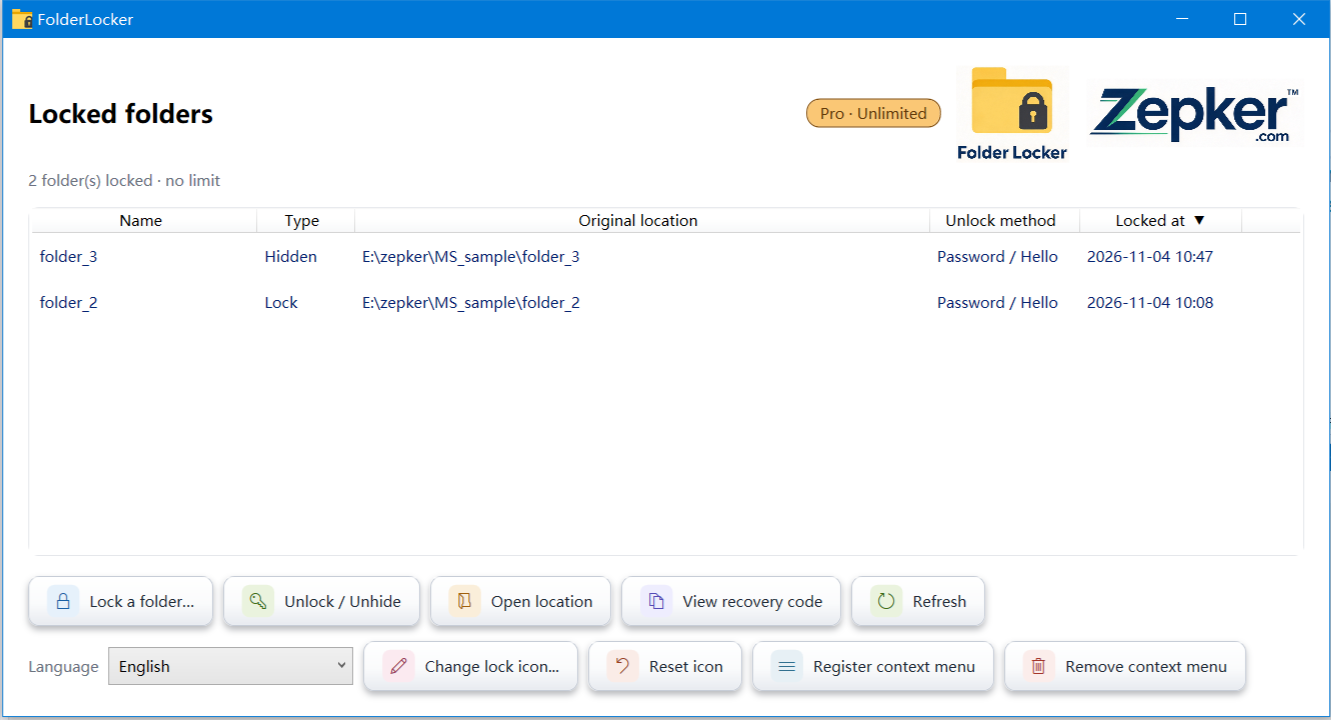
Your locked folders, all in one place. Name, type, original location, unlock method and when it was locked.
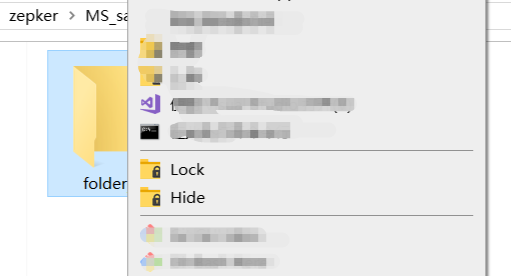
Lock or hide from the right-click menu. No need to open the app to protect a folder.
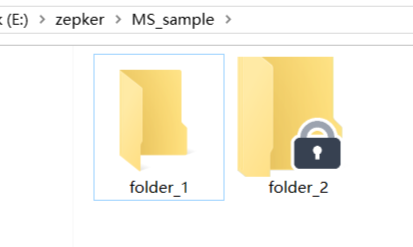
A padlock tells you what is protected. Locked folders wear a badge; normal folders stay as they are.
Download
Get FolderLocker 1.2.0
Install it from the Microsoft Store in one click, or take the portable build and run it from any folder.
Microsoft Store
Installed edition · Automatic updates
The recommended way to install FolderLocker. Verified and delivered by Microsoft, kept up to date automatically, and the Pro upgrade is handled by the Store — no separate licence key.
FolderLocker Portable
Version 1.2.0 · 1.4 MB · Windows 10 & 11 (64-bit)
Unzip it anywhere and run FolderLocker.exe. The full app with the right-click menu, folder locking, hiding and Windows Hello unlocking. Your settings stay in your own user profile.

Recovery Tool
Version 1.2.0 · 0.8 MB · Windows 10 & 11 (64-bit)
A single FolderLockerRecovery.exe that finds folders locked by FolderLocker and gives them back — useful after a Windows reinstall, a forgotten password with a recovery code, or if the app itself is gone. Keep it on a USB stick.
Free edition
Lock up to 3 folders and hide 1, with every feature switched on. No time limit, no account, no ads.
Pro — Microsoft Store edition
A one-time purchase inside the app removes the limit, so you can lock and hide as many folders as you like. Billing is handled by the Microsoft Store.
Pro — portable edition
Buy a license key once through our secure checkout: pay and the key is shown to you right away and also sent to your email. Enter it in the app to unlock everything, on up to 3 computers.
Before you run the portable build: it is not code-signed yet, so if Windows SmartScreen shows a warning, choose More info → Run anyway. The Microsoft Store edition is signed and installs without any warning. Both require Windows 10 version 1809 or later, 64-bit.
Support
Something not working?
Tell us what happened and we will look at it. Ideas for new features are welcome too — small app, real replies.
Please include your Windows version and, if a folder is stuck, the exact error message. We usually answer within two business days.

Made by Zepker
FolderLocker is designed and built by Zepker, an independent software studio that makes small, focused desktop tools. No venture money, no data business — just software people pay for once.
© 2026 Zepker. FolderLocker is a product of Zepker
Replies
Be the first to reply
Have a question or a thought to share? Add a comment above to start the conversation.