

DirDeck update: the Swiss Army knife for your Mac files

The Swiss Army knife for your files. A better alternative to Finder.
Browser-like organization. Swiss Army knife versatility.
We’ve been building DirDeck around the file tasks that interrupt your day: rebuilding the same folder setup, grabbing a download while working in another app, and opening extra tools for a small edit. DirDeck brings browser-style organization, Super Preview, over a dozen built-in tools, dozens of context-menu actions and a floating file window into one all-in-one file workspace for Mac.
Real screenshots from our redesigned website are shown below. These latest captures show the Chinese interface; the explanations are in English.
Tabs and nested favorites: manage files like you use a browser.
Give each project a tab and keep its location as you switch. Bookmark both files and folders, organize them into nested groups by project or client, and drag to reorder. Tabs hold today’s work; favorites keep the places you return to within reach.
12 layouts and saved workspaces: pick up exactly where you left off.
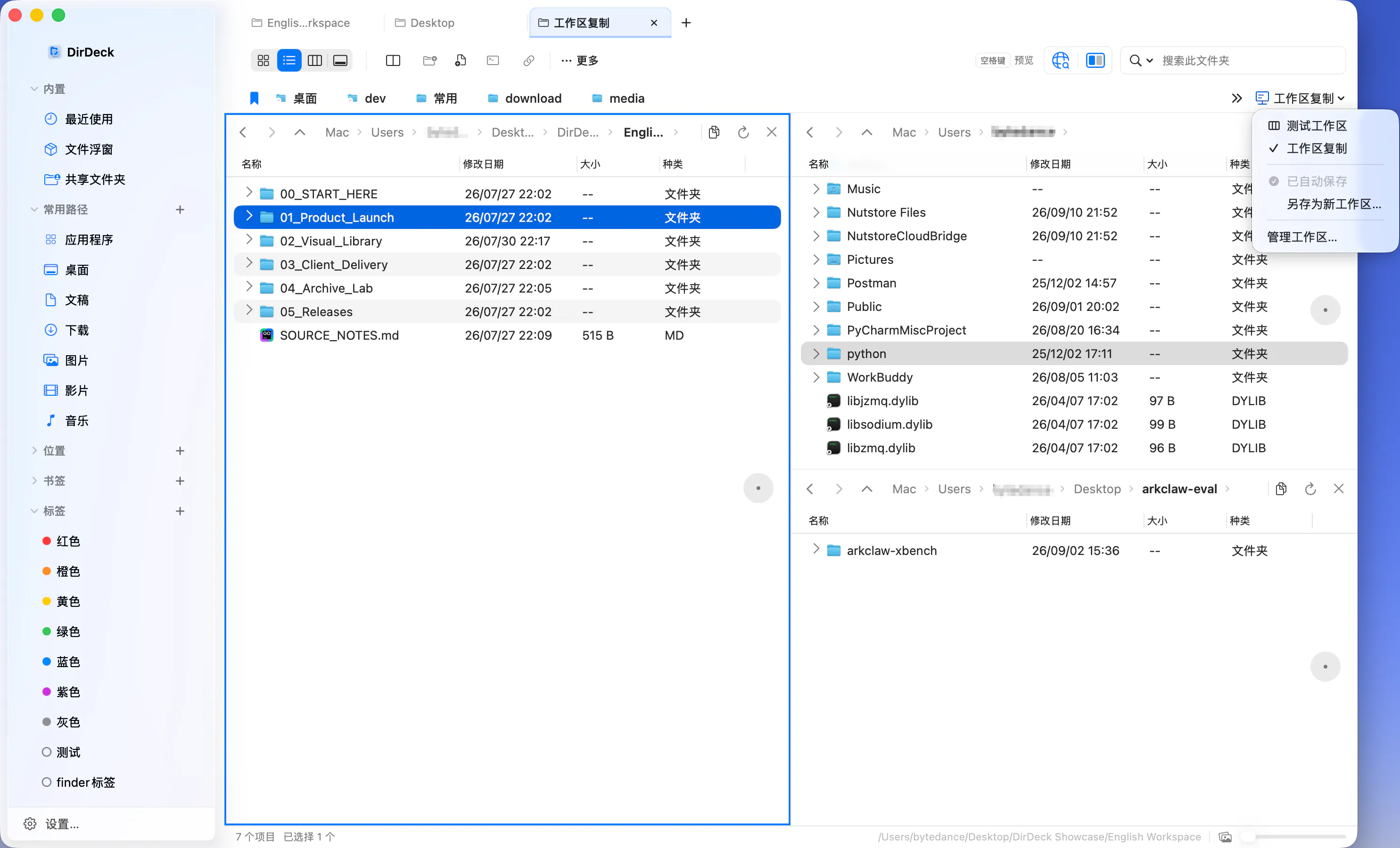
Keep the project on the left, assets on the right and deliveries in another pane. Workspaces save your folders, tabs and pane layout automatically, so returning to a project doesn’t mean arranging everything again. Browser-style tabs, nested favorites and 12 layouts with 1–4 panes give every location its place.
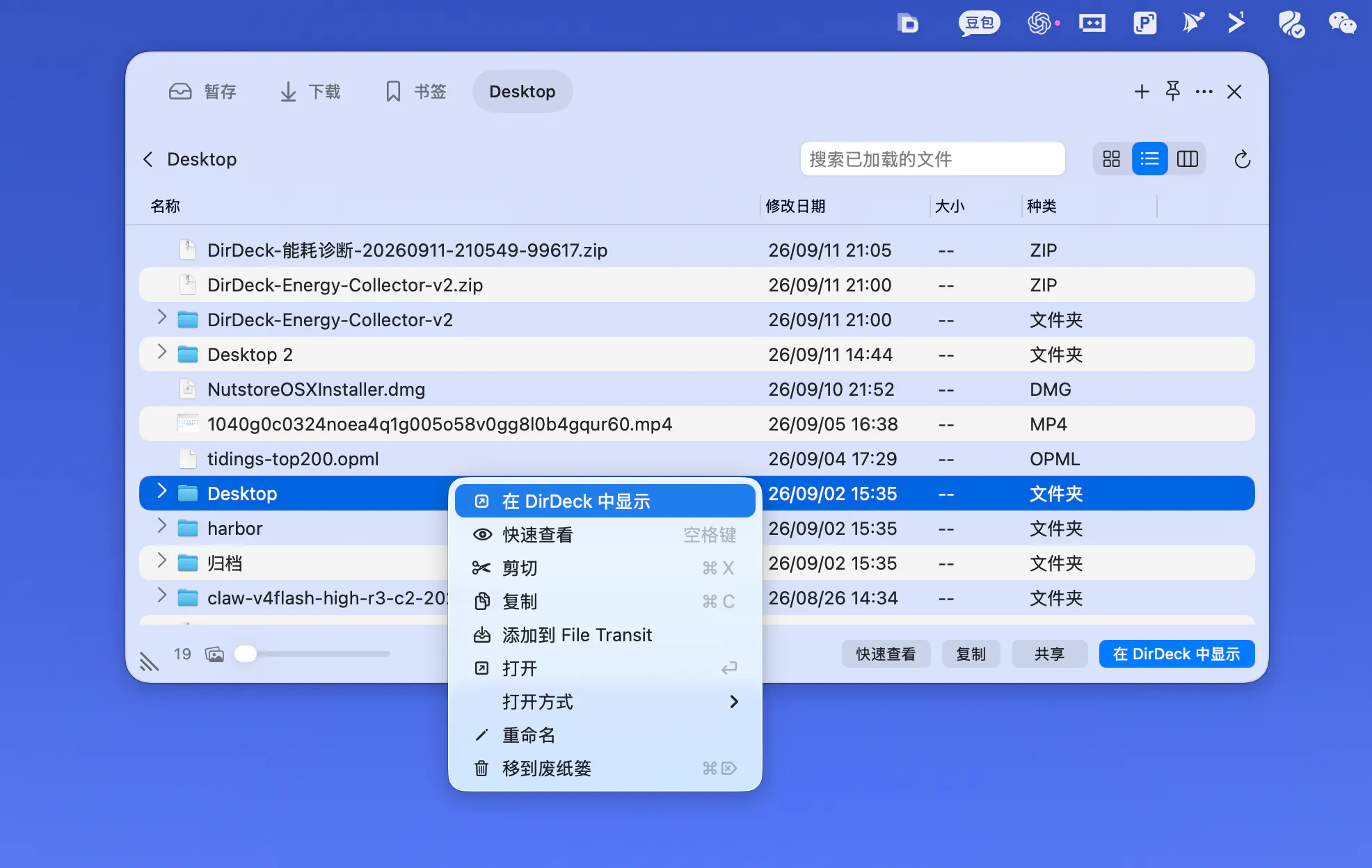
Grab a file. Stay with your work.
Move your pointer to the notch or screen edge to reveal the floating file window. Browse downloads, parked files and favorite folders; preview, copy or drag out what you need without bringing the main workspace forward. It’s built for the small file task in the middle of something else.
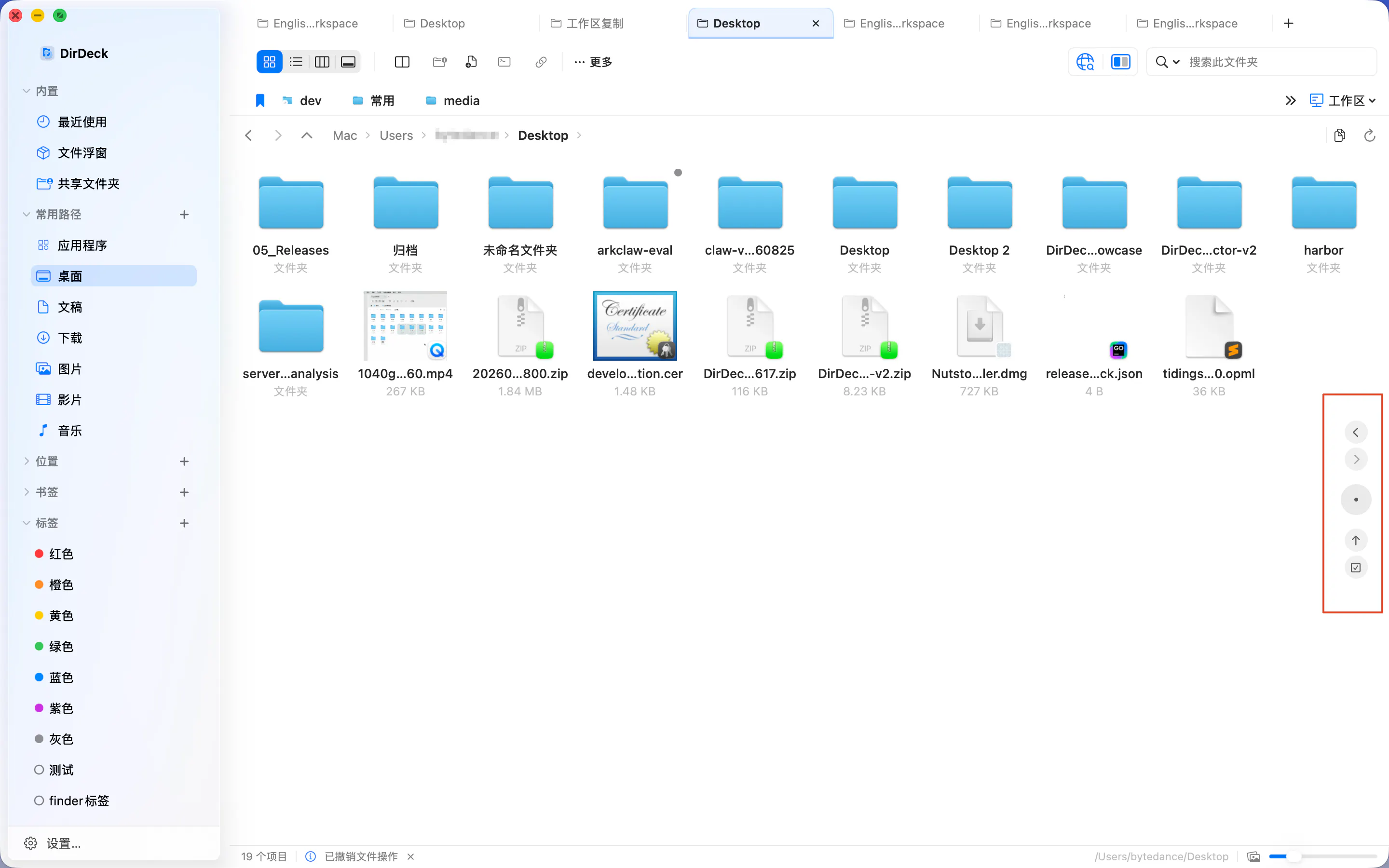
A little less mouse travel.
Each pane has its own floating orb. Configurable double-click and hover actions put going back, moving up a folder, organizing and compressing files close to the pointer. The controls belong to the pane you’re working in.
Super Preview: see what’s inside. Then decide.
A preview should tell you more than a filename. Select a file, folder or archive and press Space to inspect its contents right where you’re working.
Preview folders: explore their contents without opening another file window.
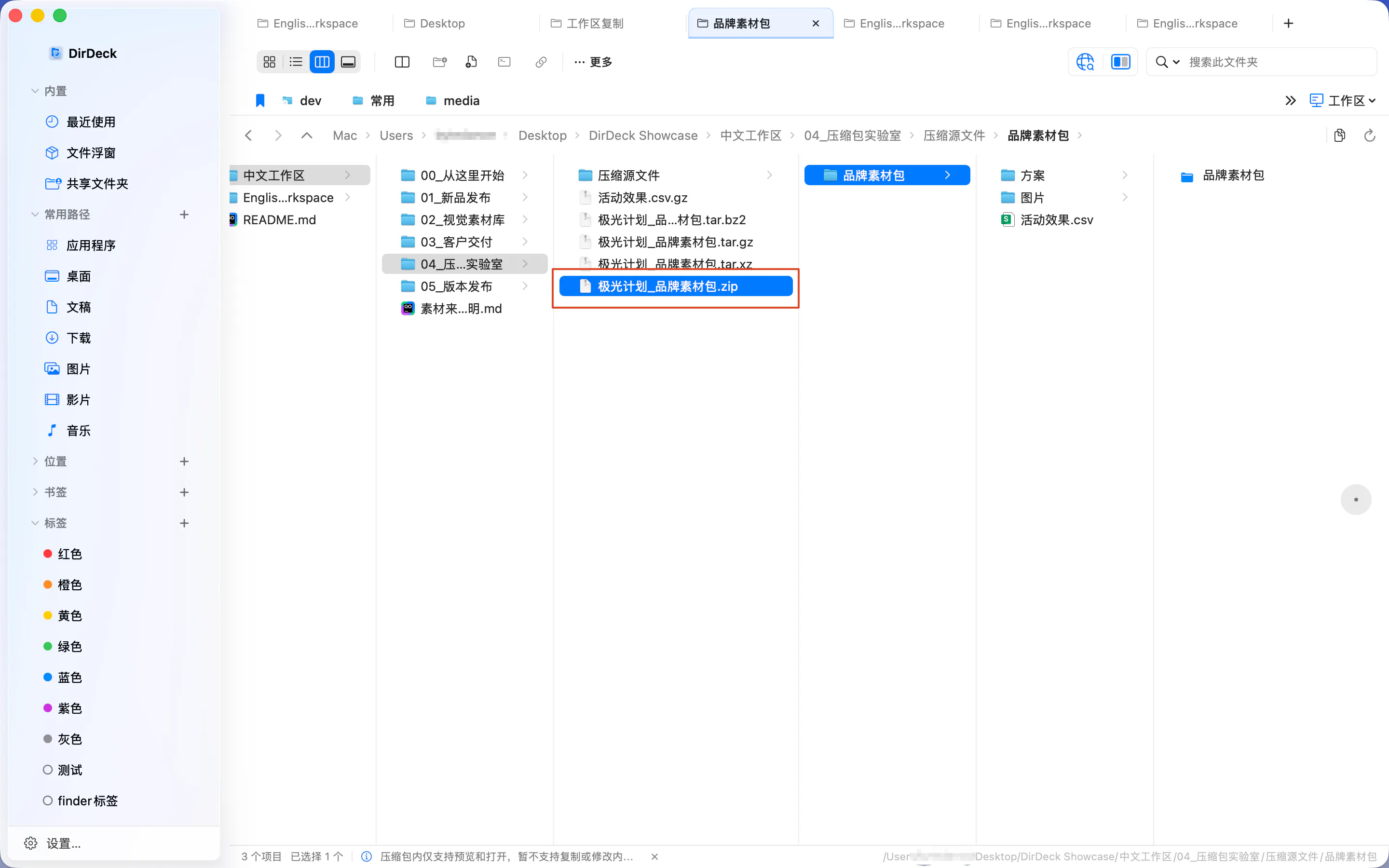
Look inside archives: expand the hierarchy and find the file you need without unpacking the entire archive first.
Read the actual content: preview Markdown, PDFs, Office documents and spreadsheets, images, audio and video without opening a separate app for each one.
100+ everyday formats: one place to inspect a mixed folder of documents, media and archives. Preview capabilities vary by format; some depend on macOS support.
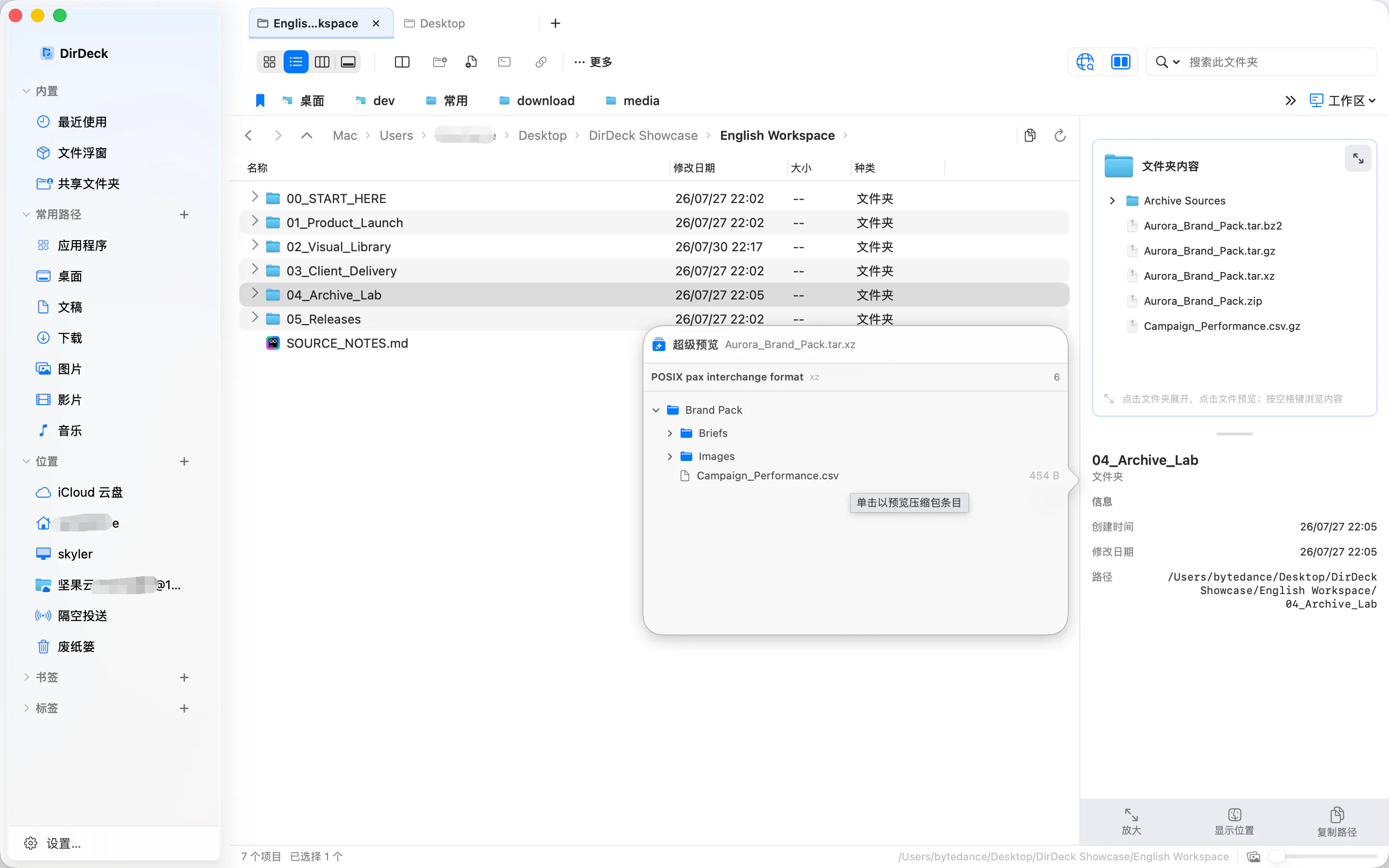
Super Preview and the side panel show a folder, an archive and its contents together.
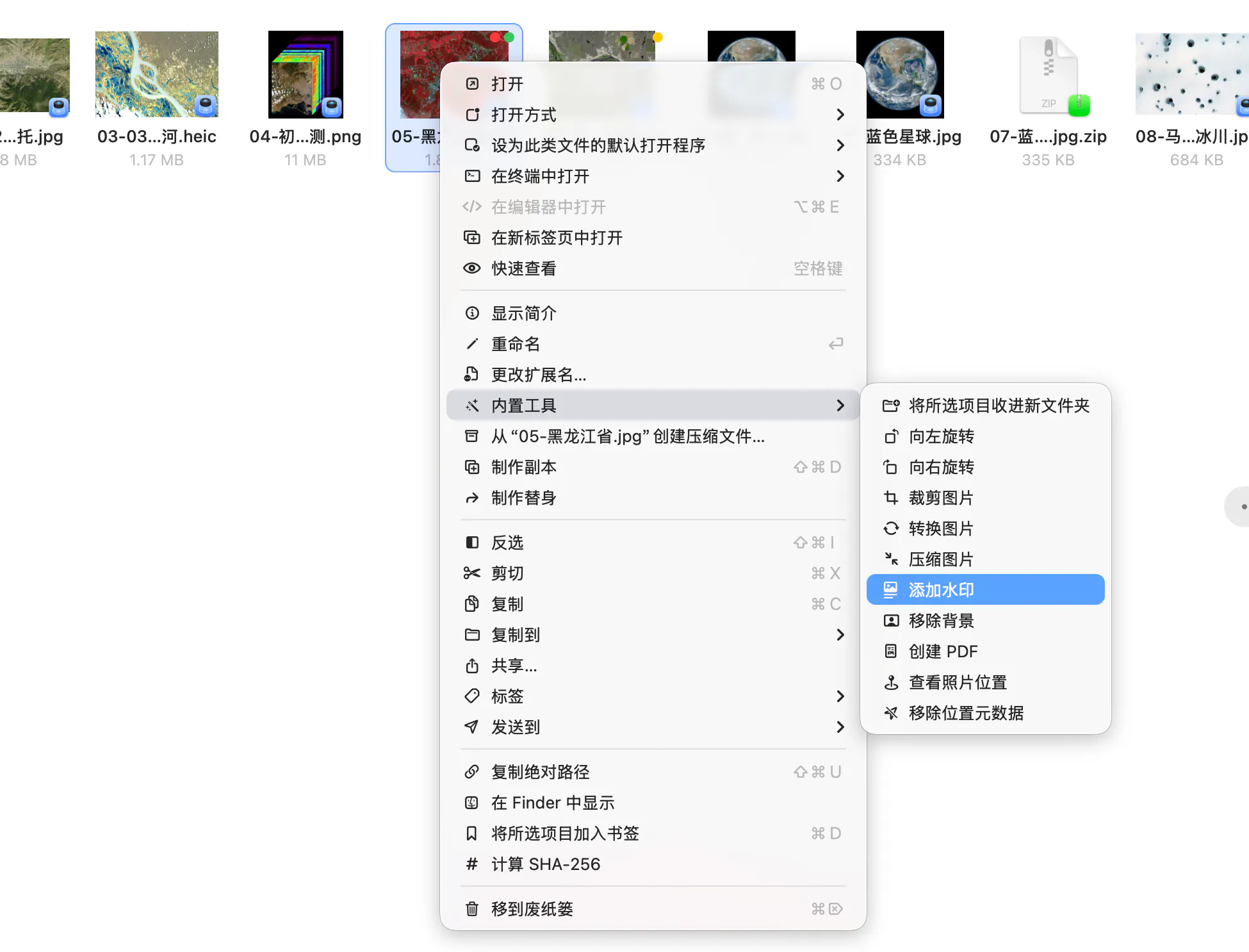
Over a dozen built-in tools: the next step is a right-click away.
Watermark, crop, convert or compress an image, remove its background, or turn selected images into a PDF. Over a dozen built-in tools and dozens of context-menu actions keep everyday file work in one place. Reorder and group the menu around the actions you actually use.
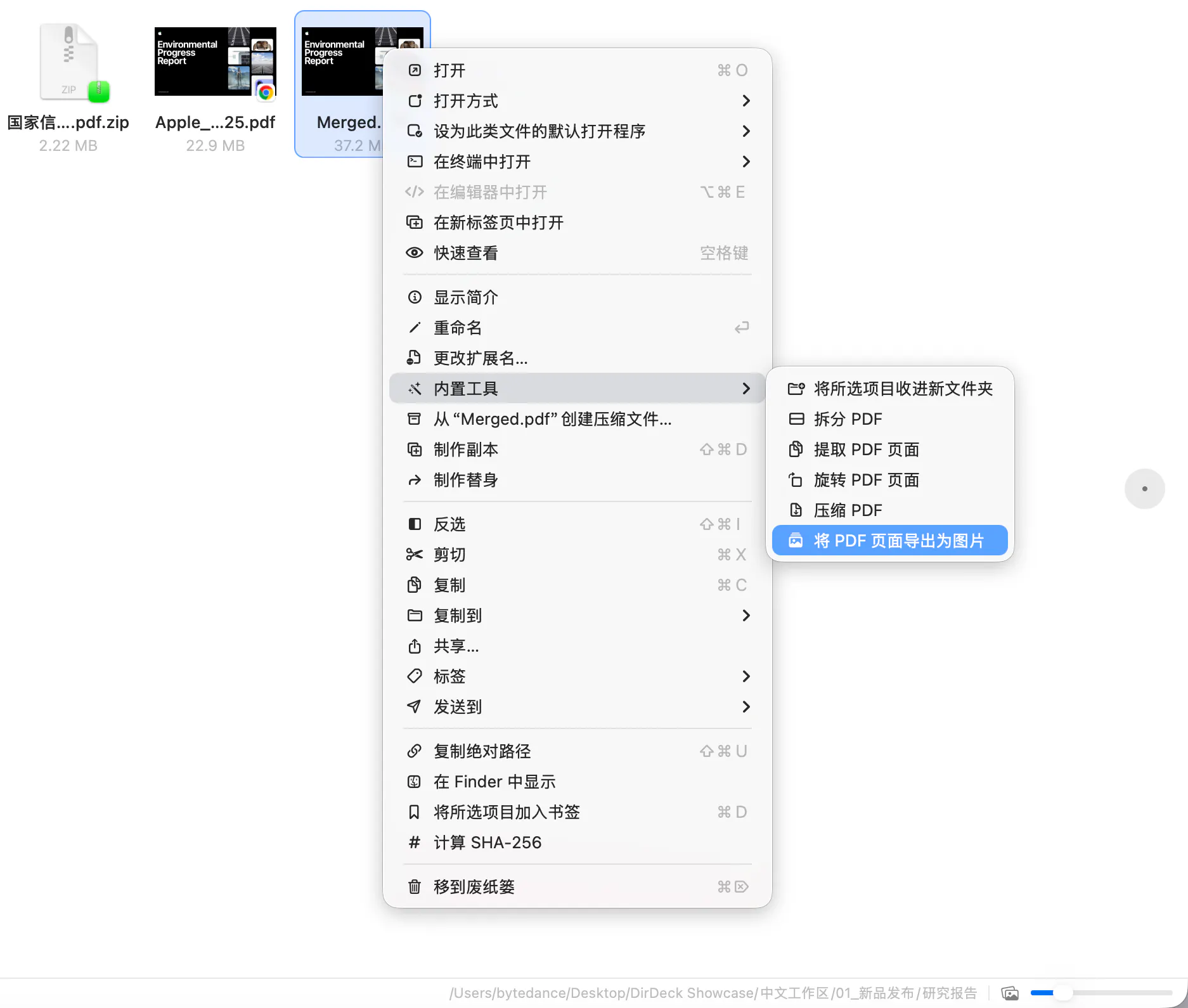
Finish the PDF job beside your files.
Split or merge PDFs, extract pages, compress or rotate them, and export pages as images. Batch rename also lets you combine rules and check new filenames before applying changes. Fewer small jobs need a separate app.
Dozens of context-menu actions, arranged your way.
Cut, Copy To, Send To, Extract To and copy paths directly beside the selected files. Actions adapt to the file type, and you can reorder, group or trim the menu. For archive creation, choose a format and set a password or split size when supported.
DD Search: tap D twice and find the file.
Type a filename or path to search across authorized locations, then open the result or reveal its location. The DD shortcut works inside DirDeck when you’re not editing text.
Still your Mac. Still your way.
Import Finder favorite locations and keep using your existing tags. Connect to SMB, AFP, NFS, WebDAV and read-only FTP locations, with connections and authorization handled by macOS. See a file’s default app on its icon and change the app for that file type from the context menu.
Explore the redesigned website and the full screenshot walkthrough
Requires macOS 15 or later. No DirDeck account needed. Try every feature for seven days with no automatic charge, then choose annual or lifetime access.
Which would save you the most time: restoring a whole workspace, grabbing files from the floating window, or handling image and PDF jobs with a right-click?
Replies
Be the first to reply
Have a question or a thought to share? Add a comment above to start the conversation.