
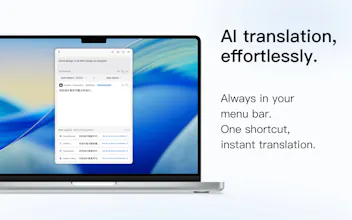
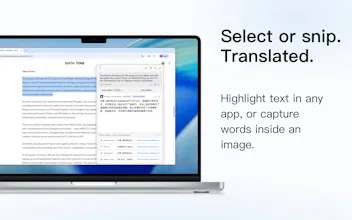
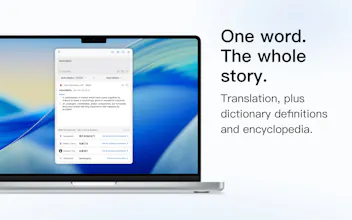
TransOne is a native macOS menu-bar translator. Translate by typing, selecting text, or grabbing a screenshot, with 14 engines ranging from Apple's on-device translator and DeepL to Google, Tencent, OpenAI, and local models like Ollama. The same window also handles text recognition, speech, dictionary, and encyclopedia lookups. Always sandboxed, zero third-party dependencies, Mac App Store only. Your text goes only to the engine you pick.
Hi everyone 👋
I built TransOne because every translator I tried made me break my flow: switch apps, paste text, wait on a cloud round trip I didn't always want.
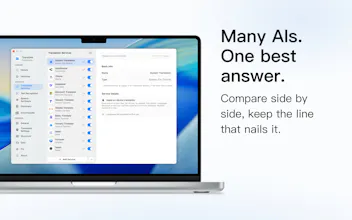
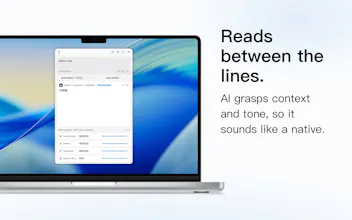
So I made it live in the menu bar and work three ways: type it, select it, or screenshot it. Then I added a choice most tools don't give you, 14 translation engines side by side. Want fully offline and private? Use Apple's on-device translator or a local model like Ollama. Want a specific provider? DeepL, Google, Tencent, OpenAI, and more are one click away, and your text only ever goes to the engine you choose.
It's a native SwiftUI app, always sandboxed, with zero third-party dependencies. Text recognition, speech, dictionary, and encyclopedia lookups are built into the same window.
Would love your feedback on which engines you'd want next. Reach me anytime at support@transone.app.
Hello! All good? I am unable to set Portuguese to remain fixed in the favorite language bar, the choice button is not activated.
And I would like to suggest some modifications: 1- Being able to translate directly through the Menu Bar, without having to open a window on the screen (like the Translate Bar app); 2- The Enter/Return key creates a new paragraph and does not give the translation command, that is, placing a button to perform the translation; 3- Introduce liquid glass to the app.
@pethersonlopes Hi! Thanks for the great feedback. 🙏
Sorry about the Portuguese issue. We’ll look into it and get it fixed soon.
As for your suggestions, all three are great. Menu Bar inline translation, a dedicated translate button (with Enter to translate and Shift+Enter for a new line), and Liquid Glass are all planned.
By the way, you might find the guide helpful: https://transone.app/guide/
@pethersonlopes Hi! Thanks for reporting this. I just checked on the current version and it works fine on my end. I can select Portuguese and pin it in the favorite language bar, and the button activates normally.
@moluuser I'm on version 1.1.1 (77) and I can't leave Portuguese fixed, the button doesn't activate. I use MacOS in Portuguese, I don't know if there is something that doesn't allow me to select...
@pethersonlopes Obrigado pela resposta. Gostaria de confirmar mais um ponto: vocês não conseguem ativar o botão de alternância à direita de "Portuguese" na página abaixo, correto?
Eu testei a versão 1.1.1 (77) e aqui está funcionando normalmente, por isso gostaria de confirmar mais detalhes.
Vocês podem primeiro tentar reiniciar o computador e o app para descartar outras interferências.
@moluuser Isso mesmo, o botão não ativa. Reiniciei o Mac e mesmo assim não ativa o botão. Testei outros idiomas e funciona, só o português que não.
Does the screenshot OCR actually copy the translated text to your clipboard, or do you always have to select it manually from the window?
@erdal224209 Screenshot OCR only recognizes the text and drops it in the input box, no auto-copy. Every result card has a Copy button, so it's one click but stays intentional. (Screenshot Translate is the one that translates automatically.)
Does the screenshot OCR handle non-Latin scripts like Japanese or Arabic reliably across all 14 engines, or only the ones trained on those languages?
@ramazan779050 The "14" is translation engines. OCR is a separate set, so script coverage depends on the OCR engine, not the translation ones. Apple's on-device Vision handles Japanese well and is the default; for scripts it's weaker on, switch to a cloud OCR engine that covers them.
Lives right in the menu bar and the screenshot OCR caught even the messy handwriting on my desk notes. Having Ollama as an engine option so nothing leaves the Mac is genuinely useful for work stuff.
@tlinyiterkwaw Thanks, glad the handwriting held up. Keeping Ollama fully local was exactly for work text you don't want leaving the machine. Appreciate you trying it.
How does the translation quality hold up when switching between the local Ollama models and something like DeepL for longer passages, do you see a noticeable jump in nuance or speed?
@dne3v07 Yes, a noticeable one. DeepL and the hosted LLM engines keep more nuance on long text and run faster. Local Ollama depends on the model: small ones are fine for gist but flatten tone, bigger ones close the gap at the cost of speed. You can enable both and compare side by side in the same window. Ollama's real win is that nothing leaves your Mac.
The sandboxed App Store only approach is a nice touch for anyone worried about where their text ends up. Switching between DeepL and Ollama in the same window feels really smooth.
@cumabezgin Thank you, that was the intent. App Store only and always sandboxed means the app touches only what you hand it. And since engines run in parallel, comparing DeepL and a local model stays friction-free.