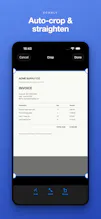
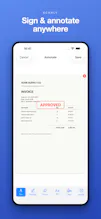
Scanly turns any document, receipt, ID, or whiteboard into a sharp, searchable PDF, right on your iPhone. Auto edge-detection, on-device OCR, signing, Face ID lock, even receipts to CSV, with nothing ever uploaded. Free to use; one-time Pro unlock, no subscription.
No reviews yetBe the first to leave a review for Scanly - Scanner & PDF
Maker
📌
Hey hunters 👋 I'm Sahil, founder of Ashvara.
A document scanner is one of those apps that really shouldn't phone home with your private paperwork - contracts, IDs, receipts, medical forms. So I built Scanly to do everything on the device. Edge detection and perspective correction give you sharp scans, on-device text recognition (Apple's Vision) makes them searchable, and you can sign, lock, and organize a document end to end - without a single byte leaving your iPhone.
A few decisions I'm happy with:
🔒 Fully on-device - scanning, OCR, and everything else happen locally; nothing is uploaded.
⚡ Sharp auto-scans - edge detection + perspective correction built in.
🔎 Searchable PDFs via on-device OCR - and receipts export straight to CSV.
🪪 Face ID lock on sensitive docs.
💜 Pay-once Pro ($2.99) - own it, no subscription.
It's free to use, with a one-time unlock for the power features. I'd genuinely love your feedback on scan quality and OCR accuracy on tricky documents (faded receipts, handwriting, glossy IDs).
Report
How well does the on-device OCR handle handwritten notes, like from a meeting whiteboard? Curious if it actually picks up messy cursive reliably.
Report
Maker
@laydat2tm Honest answer: printed text is where it's strongest. Neat, print-style writing on a whiteboard usually comes through well, but messy cursive is genuinely hard for any on-device OCR, so Scanly will be hit-or-miss there rather than reliable. It runs on Apple's on-device Vision engine, so accuracy tracks what that can read - excellent for typed docs and receipts, variable for freeform cursive.
Two things that help a lot: even lighting and filling the frame with the text. If you have a whiteboard shot that trips it up, send it my way - those hard cases are exactly what I'm tuning against. Great question, thanks!
Report
Scanned a crumpled receipt last night and it nailed the edge detection, then exported clean CSV without anything leaving my phone. The no subscription angle is genuinely refreshing these days.
Report
Maker
@diyaruluda33157 Thank you 🙏 The crumpled-receipt-to-CSV path is one I sweated over, so it's great to hear it held up in the wild. And the no-subscription thing isn't a gimmick for us: a scanner sees your most private paperwork, so it felt wrong to keep it on your device and then charge rent for it. Pay once, it's yours. If you ever hit a receipt or edge-detection case that stumbles, send it over - always tuning. Appreciate you giving it a real run.
Report
How does the OCR handle handwriting vs printed text, and does it keep the formatting when you export the searchable PDF?
Report
Maker
@nurifxnx Two good questions. On OCR: printed text is where it shines - it's Apple's on-device Vision engine, so typed docs and receipts come through cleanly. Handwriting is variable: neat printing usually works, messy cursive is genuinely hit-or-miss (true of any on-device OCR).
On the searchable PDF: yes, formatting is preserved. The PDF keeps your original scan as the visible page, with an invisible text layer underneath - so it looks exactly like the document, and the recognized text sits behind it, fully searchable and selectable. You get the real layout plus searchability, not a reflowed text dump. Thanks.
Report
The on-device OCR actually works offline on my phone, and the edge detection handled a crumpled receipt without me retaking the shot. Really refreshing to see a scanner that doesn't push a subscription.
Report
Maker
@hmeyrapazc Love this, thank you 🙏 Offline was a hard requirement for me - a scanner sees your most private paperwork, so it should never need to phone home. And the crumpled-receipt case is exactly what I tuned the edge detection for, so great to hear it held up without a retake. No subscription is here to stay: pay once, it's yours. Appreciate you giving it a run!
Report
The on-device OCR is surprisingly quick and the receipt to CSV actually pulled the totals right. Signing a doc with Face ID felt slick, definitely better than the clunky scanner apps I have used.
Report
Maker
@asiyekfie Thank you, this is great to hear! Receipt-to-CSV pulling the totals right and Face ID signing are two things I really wanted to feel effortless rather than bolted-on, so I'm glad they landed. If you ever hit a receipt that trips up the totals, send it my way - those edge cases are exactly what I keep tuning. Thanks for the kind words 🙌
How well does the on-device OCR handle handwritten notes, like from a meeting whiteboard? Curious if it actually picks up messy cursive reliably.
@laydat2tm Honest answer: printed text is where it's strongest. Neat, print-style writing on a whiteboard usually comes through well, but messy cursive is genuinely hard for any on-device OCR, so Scanly will be hit-or-miss there rather than reliable. It runs on Apple's on-device Vision engine, so accuracy tracks what that can read - excellent for typed docs and receipts, variable for freeform cursive.
Two things that help a lot: even lighting and filling the frame with the text. If you have a whiteboard shot that trips it up, send it my way - those hard cases are exactly what I'm tuning against. Great question, thanks!
Scanned a crumpled receipt last night and it nailed the edge detection, then exported clean CSV without anything leaving my phone. The no subscription angle is genuinely refreshing these days.
@diyaruluda33157 Thank you 🙏 The crumpled-receipt-to-CSV path is one I sweated over, so it's great to hear it held up in the wild. And the no-subscription thing isn't a gimmick for us: a scanner sees your most private paperwork, so it felt wrong to keep it on your device and then charge rent for it. Pay once, it's yours. If you ever hit a receipt or edge-detection case that stumbles, send it over - always tuning. Appreciate you giving it a real run.
How does the OCR handle handwriting vs printed text, and does it keep the formatting when you export the searchable PDF?
@nurifxnx Two good questions. On OCR: printed text is where it shines - it's Apple's on-device Vision engine, so typed docs and receipts come through cleanly. Handwriting is variable: neat printing usually works, messy cursive is genuinely hit-or-miss (true of any on-device OCR).
On the searchable PDF: yes, formatting is preserved. The PDF keeps your original scan as the visible page, with an invisible text layer underneath - so it looks exactly like the document, and the recognized text sits behind it, fully searchable and selectable. You get the real layout plus searchability, not a reflowed text dump. Thanks.
The on-device OCR actually works offline on my phone, and the edge detection handled a crumpled receipt without me retaking the shot. Really refreshing to see a scanner that doesn't push a subscription.
@hmeyrapazc Love this, thank you 🙏 Offline was a hard requirement for me - a scanner sees your most private paperwork, so it should never need to phone home. And the crumpled-receipt case is exactly what I tuned the edge detection for, so great to hear it held up without a retake. No subscription is here to stay: pay once, it's yours. Appreciate you giving it a run!
The on-device OCR is surprisingly quick and the receipt to CSV actually pulled the totals right. Signing a doc with Face ID felt slick, definitely better than the clunky scanner apps I have used.
@asiyekfie Thank you, this is great to hear! Receipt-to-CSV pulling the totals right and Face ID signing are two things I really wanted to feel effortless rather than bolted-on, so I'm glad they landed. If you ever hit a receipt that trips up the totals, send it my way - those edge cases are exactly what I keep tuning. Thanks for the kind words 🙌