
MacUtility
Modern Auto Clicker & Macro Recorder for macOS
8 followers
Modern Auto Clicker & Macro Recorder for macOS
8 followers
Download MacUtility, the best free auto clicker and macro automation tool designed specifically for macOS.
8 followers
8 followers




How does it handle macOS permissions or accessibility access since Apple tends to block apps that simulate clicks?
@yldzgnenzn81 The app fully complies with Apple's security model rather than trying to bypass it. To simulate synthetic mouse events natively on macOS (using CGEvent), the app uses the AXIsProcessTrusted() API to check if it has the necessary rights. On the very first launch, if it doesn't have permission, it gracefully prompts the user to open System Settings > Privacy & Security > Accessibility to manually toggle the app on. Because it relies on the user explicitly granting this permission through official macOS channels, Apple's security systems allow the simulated clicks to pass through without blocking them.
Curious how it handles permissions on newer macOS versions, like the accessibility and input monitoring ones, without needing to disable Gatekeeper every time you launch it?
@nurullahstender
You definitely don't need to disable Gatekeeper, and it only takes a one-time setup to get everything running smoothly on newer macOS versions. Here is exactly how it handles it:
Bypassing Gatekeeper Once: Because I distribute the app directly on my website outside of the Mac App Store, macOS flags it as from an "unidentified developer" on the very first launch. To handle this, users simply need to Right-Click the .app file and select "Open" the very first time. macOS then registers this as a deliberate choice by the user, remembers it, and will never show the Gatekeeper warning for this app again.
Persistent Permissions: For Accessibility and Input Monitoring, macOS tracks permissions using the app's unique Bundle Identifier. When the app is launched and asks for permissions, you are prompted to manually enable it in System Settings > Privacy & Security. Once toggled on, macOS permanently links that permission to the app. As long as you don't move the .app to a weird location or drastically change its underlying code signature between updates, the OS will remember your preference. You only have to grant those permissions once, and it will work flawlessly on every subsequent launch!
Does this need Accessibility permissions to actually run the auto clicks, and is there any limit on how complex the macros can get before it starts lagging the system?
@tarkb3lu
Accessibility Permissions: Yes, it absolutely requires Accessibility permissions. Because I distribute the app directly via my website (and not the Mac App Store), macOS requires you to explicitly allow it. On the very first launch, you usually have to Right-Click -> Open the app to bypass Gatekeeper's initial check. After that, macOS will prompt you to go to System Settings > Privacy & Security > Accessibility to manually toggle the app on. This is a strict Apple security measure—without this explicit permission, the macOS WindowServer will simply block and drop all the synthetic clicks the app tries to make.
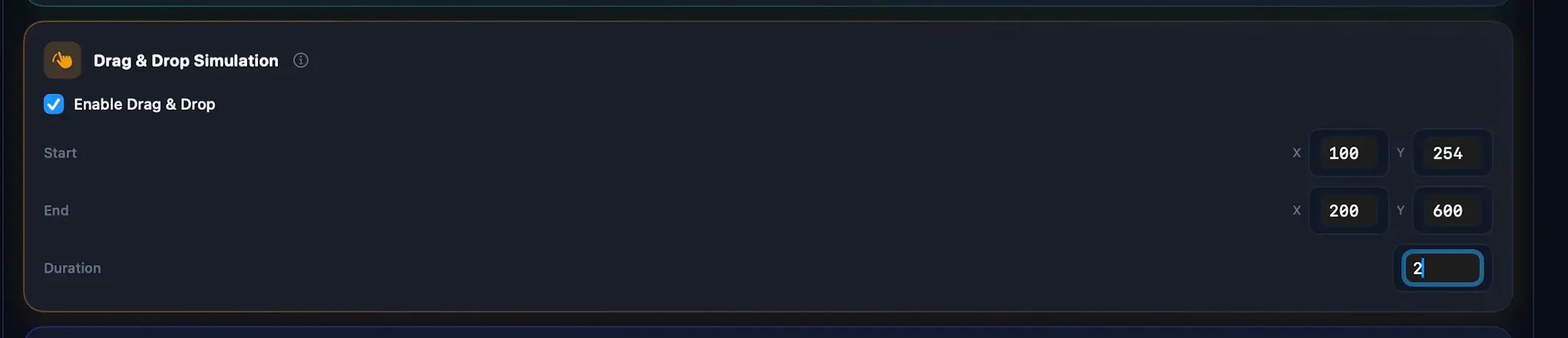
System Lag & Macro Complexity: The complexity of the macros (like setting up multi-point paths or drag-and-drop actions) won't cause the system to lag because the app is built completely natively in Swift, which makes it very lightweight and highly optimized. However, there is a limit when it comes to speed. If you set the click interval incredibly low (like trying to push thousands of clicks in a single millisecond), the app itself won't crash, but you might overwhelm the macOS event queue or the specific game/app you are targeting. When an app receives events faster than it can render them, it causes the UI to freeze or stutter. To prevent this, keeping the click intervals reasonable (a few milliseconds) and utilizing the app's built-in "Human Randomization" features will ensure your system stays perfectly smooth regardless of the macro's complexity.
One thing I'd love to see is the ability to set different click speeds or actions per app or window, so I can have it behave one way in a game and completely different in a productivity app.
@sebahattinzokt
Thanks for the great feedback! That's an awesome idea for a feature. I've added 'App-specific profiles' to my development roadmap. For now, you can achieve something similar by saving different configurations using the Preset Management feature and switching between them manually. Stay tuned for future updates!
Really nice that it stays focused on just doing the clicker job well without bundling in a bunch of unnecessary extras. The fact that it's built specifically for macOS rather than a generic port makes a noticeable difference in how snappy it feels.
@aryaferhatqjfv
Wow, thank you! I really appreciate that. Keeping it lightweight and focused on doing one thing really well was super important to me. Building it natively for macOS definitely took some extra effort, but hearing feedback like this makes it absolutely worth it. Enjoy the app!
Love how lightweight this feels compared to other auto clickers I've tried on Mac, and the fact that it's free with no sketchy bundled software is a huge win.
@nilgn2902160993
Thank you! I totally agree—there's a lot of questionable software out there in this space. Because this is built natively for macOS, it keeps the footprint super lightweight and resource-friendly. As a solo dev, I just wanted to build a high-quality tool that I would actually want to use myself. Thrilled that you like it!