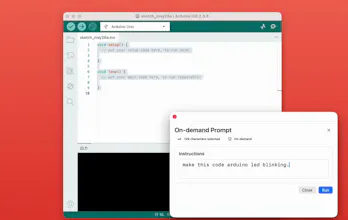
Gengo is a macOS utility that transforms selected text instantly using AI. Select text anywhere on your Mac, describe what you want, and Gengo replaces it in place. Turn GitHub URLs into GitHub Pages URLs, convert Japanese into natural English, generate terminal commands, format SQL, create TypeScript types from JSON, and much more — without switching apps or breaking your workflow.
No reviews yetBe the first to leave a review for GenGo
Hunter
📌
Hi Product Hunt 👋
I built Gengo because I kept interrupting my workflow to search for commands, translations, formatting examples, and tiny snippets I could never remember.
The idea is simple:
1. Select text anywhere on macOS
2. Describe the transformation you want
3. Gengo instantly replaces the selected text
Some examples I use every day:
• Convert GitHub URLs into GitHub Pages URLs
• Turn terminal errors into fix commands
• Generate ffmpeg commands from plain English
• Convert JSON into TypeScript types
• Rewrite Japanese text into natural English
• Format messy SQL instantly
Instead of opening a browser or ChatGPT every few minutes, Gengo keeps the workflow inside the current app.
I’d love to hear what kinds of text transformations you’d want to use it for!
Report
Replacing the selection in place is the part that'd make me nervous — if I select a paragraph and the transform isn't what I expected, is there a clean undo, or am I trusting Cmd+Z to walk back exactly what got swapped? A diff-preview before it commits would calm that a lot.
Report
Hunter
@sounak_bhattacharya That’s a great question — by default, Gengo does not automatically replace the selected text immediately.
Instead, it first shows the generated replacement candidate, and the user explicitly decides whether to apply it:
• Cmd+Enter → apply replacement
• Esc → cancel
So the workflow is designed to keep the user in control before committing any change.
For users who prefer a faster workflow, there’s also an optional auto-replace mode.
And of course, standard undo (Cmd+Z) still works as expected, so please feel free to experiment without fear 🙂
Report
The GitHub URL pages conversion example immediately clicked for me. Tiny repetitive tasks like that add up massively over time for developers.
Report
Hunter
@eugene_marshall Exactly — that was one of the main motivations behind Gengo.
Not the huge once-a-month tasks, but the tiny “I know I’ve done this before…” moments that constantly interrupt flow.
Individually they take only seconds, but over hundreds of repetitions they become real cognitive friction.
I wanted Gengo to feel less like “opening an AI app” and more like giving macOS a native text transformation layer.
Replacing the selection in place is the part that'd make me nervous — if I select a paragraph and the transform isn't what I expected, is there a clean undo, or am I trusting Cmd+Z to walk back exactly what got swapped? A diff-preview before it commits would calm that a lot.
@sounak_bhattacharya
That’s a great question — by default, Gengo does not automatically replace the selected text immediately.
Instead, it first shows the generated replacement candidate, and the user explicitly decides whether to apply it:
• Cmd+Enter → apply replacement
• Esc → cancel
So the workflow is designed to keep the user in control before committing any change.
For users who prefer a faster workflow, there’s also an optional auto-replace mode.
And of course, standard undo (Cmd+Z) still works as expected, so please feel free to experiment without fear 🙂
The GitHub URL pages conversion example immediately clicked for me. Tiny repetitive tasks like that add up massively over time for developers.
@eugene_marshall Exactly — that was one of the main motivations behind Gengo.
Not the huge once-a-month tasks, but the tiny “I know I’ve done this before…” moments that constantly interrupt flow.
Individually they take only seconds, but over hundreds of repetitions they become real cognitive friction.
I wanted Gengo to feel less like “opening an AI app” and more like giving macOS a native text transformation layer.