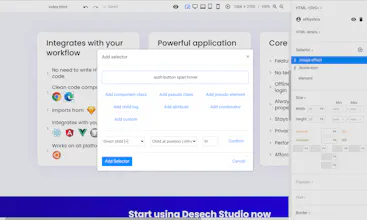
Desech Studio is a free modern nocode visual html/css editor which enables you to import your Figma, Sketch, AdobeXD design file to generate a clean html structure positioned with CSS grids. Then you can integrate it with React, Angular, Vue or Material Design

This is a product that I have worked on for quite some time and I'm excited to show it to the world. Desech Studio will always be free, with offline support and privacy conscious. Future plans are to integrate with Wordpress, and then implement features that will allow you to not need design software, and just design your application directly in Desech Studio.
I have also recently posted a full HTML/CSS tutorial on youtube, learning web development in a visual way instead of using code.
Report
@catalin_luntraru : Looks great! Congrats on the launch! How does it compare with webflow?
@saascoach Thank you. Compared to webflow, with Desech Studio there's no limit to the html/css you can build.
- You can have any html tag you want, while webflow only offers some tags.
- You can create any custom css selector you want, while with webflow you can only have 3 selectors (hover, pressed, focus).
- You can add any css property and value you want, while webflow restricts that only to a bunch of them.
- As for responsive, you can go desktop first or mobile first and have any break points you want, while webflow only gives you some break points and forces the desktop first mode.
And I think the most important thing, is that with Desech Studio you can import your adobexd, figma or sketch file, and you can also integrate the code with react, angular, vue and material design.
One final point, you can visually modify your html/css with Desech Studio for the entire life of your project because it stays in sync with your code, while with webflow, you can only export the html/css and then copy paste it in your code base.
Ultimately, Desech Studio is aimed at professional developers and designers, while Webflow is more a hybrid website builder that only gives you a taste of the power of html/css.
Report
Looks great!
Report
Could this tool be integrated with an existing, complex React single-page app to add new pages (routes), move/add in new components around, edit copy, etc? Or does it heavily rely on there being an html file foundation to work?
Report
I tested it out. Seems like it does rely on an HTML/CSS structure, but can export that HTML/CSS classes just wrapped within React.
One piece of a feedback for the Desche team - consider spending a bit of polish on the visual builder UX. For example, hitting "backspace" doesn't delete an element as one might expect. That's probably the most annoying UX issue I noticed right away.
It would be cool if this tool was aware of React components and let you bring them into the visual builder as well. Our components rely on Styled Components for styling, so not sure if there's a way for Desche to know of styled components where the CSS is embedded inline with the React components.
@axel_norvell Hey Axel. Unfortunately because how Desech works, you can't work with existing projects, only new projects. Indeed the project is based on html/css and then it exports to react.
> For example, hitting "backspace" doesn't delete an element as one might expect.
@axel_norvell Desech is very green, so we value all the feedback we get. We pushed the requested feature, and other fixes and improvements, in today's update (version 1.1.2). The next update will greatly increase the import/export process since most people are interested in that.
> It would be cool if this tool was aware of React components and let you bring them into the visual builder as well.
Desech doesn't parse the react code, instead it converts the html/css built with Desech into React code and components. So the direction is from html/css to react, not the other way around.
The benefit from this is that you can easily switch your project from react to vue if you want to, and then you will only have to deal with the js code, while the components, html and css stay the same, and they just get converted to what is needed.
Report
Hi Catalin,
you mention "privacy concious" in your intro... Can you expand on this please? Is the app open dource also or do you have plans for this in the future?
Thankyou, it looks great so far!
@barsteward Some of the privacy features on Desech Studio are:
- There's zero telemetry into the app.
- The google fonts are on desech.com and you get the raw files, instead of hotlinking them to google, which tracks you through their CDN.
- It's an installable piece of software which means that there's no lockin, like you have with SaaS solutions.
- After you authenticate there's no more internet communication inside the app, unless you install a font which will download it from desech.com, or you install a plugin which will take it from the desech gihub repositories. This means you can use Desech Studio offline.
The privacy features on desech.com are:
- There's no analytics or any linking to any other website resources. Only the payment page links to stripe.js because we have to, in order to work.
- Cookies are not used at all for fingerprinting you. They are only used for authenticating you once.
- Everything is custom made, including the ticket system, so there are no 3rd parties that can track you.
- Not much is stored in our database. The customer profile like name, address, etc is stored in stripe, so if something happens to our database, then there's nothing you can use from it. Even the authentication tokens are encrypted. But I guess that's more of a security benefit, than privacy.
I would love to make this open source, but I would also like to focus on this product 100% of my time. So this requires monetization in order to continue to do so. But I think the pricing model is fair, since you can use it for free if you don't mind the popup after half an hour, or you can pay €10/month to have the popup removed.
Hi,
Desech Studio 2.0 is here. Components have been completely rewritten and now they work similar to Figma, Sketch, AdobeXD, but even better.
Desech Studio updates like Chrome or Firefox, where it downloads the update, and then on the next application opening it will update. Plugins, on the other hand, update when you open Desech Studio, so make sure to wait for the update notification and reopen the application, before opening a project, to make sure both the plugins and Desech Studio are updated. In the future this maneuvering will no longer be needed.
How to create components?
- To create a component, you open the File Manager panel inside Desech Studio, then right click the component folder and create a component file called "button" for example.
- Inside the component file you can add what ever html elements you want, for example you can keep the default block wrapper and inside of it, you add a text element which you can then change to a button, by using the Html section on the right side.
- Then you open the index page, make sure the File Manager panel is opened, and you can right click the "button.html" file from the component folder, and then "Add component to page"
What can you do with components?
- Now if you open the Elements panel, you can see your component, but also all its children elements, which you can now change by overwriting them completely.
- You can override the tag, inner text, attributes, properties, classes, css styles and even swap to a different component. The only thing you can't change is moving elements or adding new elements.
- Once you have a set of component overrides, you can save them as a variant. For example, you can change the Type attribute of the button to "Submit". Then select the component and in the Component section (right side) you can create a new variant, so let's set the name to "type" and the value to "submit" and Save.
- Now this component has a variant called type with 2 values: "submit" and Default.
- Let's change the variant value to Default to have it empty and then let's change the text color to a red color. Now the css has been overridden, and we can go to the component and create the variant "color" with the value "red".
- You can also mix and match between these 2 variants. Know that, if you want to create a new variant, you need to not have any other variants selected. So with no variants enabled, we can change the color of the button to a blue color. Now we can save it as a variant by using the existing "color" type, but with a different value set to "blue". Now the "color" variant has 2 options: red and blue.
Lots of customization options
- You can also punch a hole inside a component. Open a component, select a block element that has no children elements inside, and then in the Html section, there's a whirlpool icon. Clicking that will make that block the hole of the component. You can only have one hole per component.
- To understand holes better, think of them as this.props.children in React, in Vue and in Angular
- You can have a component with a hole and then inside that hole you can add 2 other components and then all this can be overridden by swapping one component to another component and then select some variants on this new component.
- You can also override variants too
- Swapping components is useful in situations where you have an icon component inside a card component, and then when you reuse that card component you change the text and also swap the icon component to a different component.
Integrations
- The component system is fully exported to React, Angular and Vue, and it's integrated with StoryBook by default. Inside Desech Studio you need to go to Settings > Plugins and install the plugin that you want. Then in File > Project Settings, or when you create a new project, you can set the export code to React, Angular, Vue or keep it as HTML/CSS.
- Now every time you save inside Desech Studio, an _export folder is created with all the exported files for your project, be that react, angular, etc.
Before integrating with React, Angular and Vue, please read the github readme pages:
- https://github.com/desech/studio...
As it was previously, Desech Studio always overwrites things inside the desech comment blocks, but anything you add outside of these blocks is not touched by Desech Studio, so you are free to add what ever logic you need, while still being synced to what Desech Studio generates.
There are a couple of changes to how Desech Studio worked before the update:
- When you open an old project it will be automatically migrated to the new version, but there might be some issues, so make a backup first.
- Programming properties only work now when exporting the project to React/Angular/Vue. For the static Html/Css export, properties have no purpose and are ignored. If you have used properties for creating design logic like elements being selected, etc, now you can use the new component system with overrides and variants.
- Css classes with no style used to be deleted, but you could have created a property called "class" or "className" for React, and add your classes this way. You no longer need this hack. You can just add your classes from the selectors section without the worry of being deleted.
- Components and component holes no longer have
s to wrap them around, so please check your javascript DOM code for extra containers.
- If your existing project uses React/Angular/Vue, then first move the current `_export` folder somewhere else to back it up and then open your project with Desech Studio so the `_export` folder is re-created. Then check each component and add you custom logic where is needed. I know it might be a lot of work if you already have a lot of code, but the changes are so big that it's impossible to upgrade all this with a script.
Everything has been extensively tested and it was 4 months in the making, but we assume a couple of bugs slipped through, so please contact us with any issue.
If you have any questions, please check https://www.desech.com/support.html from where you can use our ticketing system, our subreddit, contact form or even directly email us at contact@desech.com
Report
It's not 100% clear on the website. How does the export work?
@muslim1 Indeed, we will try to make it more obvious, thank you. Have a look at the presentation video, either here on product hunt or on the website at minute 5:39. I will link the video again here with the timestamp.
Let's take for example that you want to integrate with react. First you install the react plugin inside Desech Studio which is in Settings > Plugins. This is a one time thing, once installed you have it.
Then when you create a new project, you can set the `Export Code Plugin` option to `React` instead of the default `Static`. Now, when you save the files inside Desech, it will also create an `_export` folder where the react code will sit.
The react code is generated with the standard `create-react-app`. Have a look at the github repo at https://github.com/desech/studio... .
So how does all this work? You will manage your html/css files visually with Desech Studio for the entire project lifetime, while the javascript code, you will manage it with your favorite code editor. Desech only changes the blocks of code that deal with the html/css. It will never touch the outside blocks where you add code, so you are free to add whatever logic you want and need outside of it.
This means that you can npm install anything you want, add storybooks, etc. You can also use your own code base by creating your own plugin in the plugins folder of Desech Studio, which you can create it by copy/pasting the existing react code and just change the base js files. Then you will use that in your project settings, instead of the standard React plugin.
This also applies to angular and vue.
Desech Studio
Desech Studio
Desech Studio
Desech Studio
Desech Studio
Desech Studio
Desech Studio
Desech Studio
Aymo AI
Desech Studio