
Cutscene Replay
Never miss. Always clip.
1 follower
Never miss. Always clip.
1 follower
Cutscene Replay is a replay capture and clipping tool for streamers and creators. Set up independent horizontal and vertical layouts, save profiles for different games, and capture both versions of a moment with one hotkey. Manage clips in the built-in Clip Library, make quick edits with trimming, captions, audio and branding tools, then export for publishing. Original video and audio sources can also be preserved for external editing.

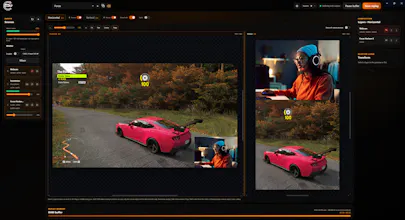




Cutscene Replay started with a problem I kept running into as a streamer: capturing a good moment was easy, but turning it into content for multiple platforms took far too long.
Most clipping workflows either rely on compressed platform clips, require you to search through recordings afterwards, or take one horizontal video and crop it for vertical platforms.
I wanted something different: choose the moment while it is happening, capture it properly for each platform, and keep the rest of the workflow in one place.
With Cutscene Replay, you can build completely independent horizontal and vertical layouts, save profiles for different games or content styles, and leave the application running quietly in the background.
When something worth sharing happens, one hotkey can capture both versions.
From there, clips are automatically available in the Clip Library, where they can be previewed, filtered and managed without digging through folders.
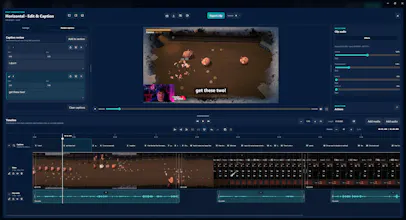
And with the new built-in Clip Editor, you can take care of the edits that commonly turn a captured moment into something publishable — trimming dead air, cutting sections, adjusting audio, adding captions, changing playback speed, adding media or branding, and preparing the final clip for export.
For clips that need more involved production, Cutscene can still preserve the original video and audio sources and prepare them for supported external editing workflows.
Current features include:
• Independent horizontal and vertical capture layouts
• Multiple saved profiles
• High-quality local replay capture
• One-hotkey horizontal + vertical capture
• Fast ready-to-upload exports
• Built-in Clip Library
• Built-in timeline Clip Editor
• Trimming, cutting, audio adjustments and playback speed controls
• Local caption generation and caption editing
• Additional media, audio and branding layers
• Separate original video and audio source files
• Export workflows for supported editing software
• Configurable capture durations and post-capture delay
• Global hotkeys that work while gaming or streaming
The aim is simple: reduce the distance between “that was a good moment” and actually publishing it.
For a quick clip, that can mean capture → edit → export without leaving Cutscene.
For something more ambitious, the original sources are still there when you want to take it further.
Cutscene Replay is available for Windows with a 14-day free trial & Product hunt user get an additional 1 month free as early adopters using the code on the product page.
I’m also onboarding a small group of creators who want direct setup support and the opportunity to help shape where the product goes next through honest feedback.
I’d particularly like to hear from other creators: which part of turning a stream moment into a finished post currently takes you the most time?
Thanks for taking a look.