
AutoShelf
Automate any folder on your Mac with if-this-then-that rules
241 followers
Automate any folder on your Mac with if-this-then-that rules
241 followers
AutoShelf watches folders on your Mac and runs your rules on new files: move, rename, tag, sort into subfolders, unarchive, convert images, video and audio, and more. Start from a template, preview matches before a rule runs, and control it from the CLI or your local AI agent over MCP. Free with 1 rule; Pro is a one-time purchase, no subscription.
This is the 3rd launch from AutoShelf. View more

AutoShelf 2.6
Launched this week
AutoShelf is a Mac app that automatically files, renames, tags, converts, and sorts new files in folders like Downloads and Desktop, based on rules you set once. New: sort into subfolders built from tokens like %kind% and %date%, unarchive, Finder color labels, and rules that cover all or selected subfolders. Free with 1 rule, or $19.99 one-time for unlimited rules ($29.99 from Nov 25). Requires macOS 14 Sonoma or later.



Free Options
Launch Team

Hey Product Hunt, I'm Orçun, the solo developer behind AutoShelf.
AutoShelf watches folders on your Mac and organizes new files the moment they land, using rules you set once.
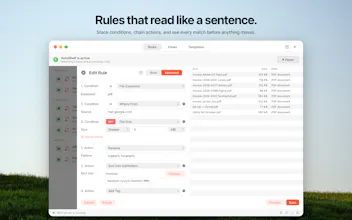
• Rules that read like a sentence: pick a folder, add conditions (file type, extension, name or regex, where it was downloaded from, size, age, even text inside the file), then chain actions.
• Actions: move, copy, rename, tag, trash, ZIP or unarchive, convert images, video and audio, optimize images, import to Photos, or run your own shell scripts and AppleScripts.
• Sort into subfolders built from tokens like %kind%/%date:yyyy-MM%, so your destination folder never turns into a junk drawer. Missing folders get created.
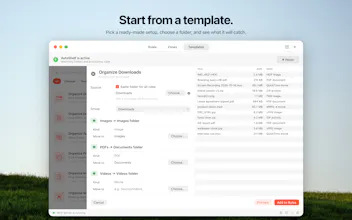
• Templates for Downloads, Desktop, screenshots, invoices and more, so you're set up in a minute.
• Live preview shows exactly which files a rule will match before you turn it on.
• Watch multiple folders, all subfolders, or only the ones you pick. Half-finished downloads are skipped until they finish.
• Built-in MCP server and CLI, so your local AI agent can create, preview and run rules. Write access is off by default.
Native, sandboxed, on the Mac App Store. Free with one rule and all templates; Pro is a one-time $19.99, no subscription.
What's in your Downloads folder right now, and what rule would you write first?
Heads up: the Pro price goes from $19.99 to $29.99 on November 25.
the preview of matching files is the feature i would check first
folder rules are easy to get slightly wrong and a good preview can save u from sorting a whole downloads folder back by hand
@saad_el_gueddari Agreed, that’s why the preview is right inside the rule editor. While you set up conditions, it lists the files currently in the folder that would match, so you see “oh, that also catches my PDFs” before you save. Your local AI agent gets the same check through preview_rule, so it can do a dry run before it turns a rule on.
For extra safety, Pro can ask for confirmation before a rule acts. Every action is also logged in Activity with Reveal in Finder, so you can always see where a file went.
The MCP setup is the part I'd want to understand before letting an agent near my Downloads folder. With write access off by default, is enabling it a single global toggle, or can I scope it per rule — and does preview_rule show the chained actions a rule would run, or just which files match?
@jcbuilds Right now it’s one global switch. Write access is either on or off for the whole app, and you can’t scope it per rule. With it off, your agent can still list rules, read them and run previews; it just can’t change anything or run rules. A few protections apply even with writes on: deleting a rule only moves it to the Rule Trash, where you can restore it, and agents can’t create script actions at all. Those can only be made in the app.
preview_rule shows both. It lists the files that match right now, plus the full action chain in order, like “unzip → sort into Projects/%date:yyyy-MM% → purple label”. It doesn’t yet show the exact final path for each file. That came up earlier in this thread and it’s on the list.
Sorting by where a file was downloaded from is a nice touch. Two PDFs can belong to completely different workflows, so file type alone only gets you so far.