Launched this week

AutoShelf
Auto-organize files on your Mac
103 followers
Auto-organize files on your Mac
103 followers
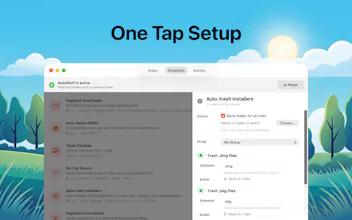
AutoShelf is a macOS app that watches your folders and auto-organizes files. Set a rule once and never think about it again. Free to try, unlock unlimited for $19.99.




AutoShelf
Folder chaos on my Mac has been a constant battle. Does it handle nested folder structures or just top-level organization?
AutoShelf
@rich_nashawaty Good question! Right now AutoShelf only handles top level files within watched folders, so files inside subfolders aren't picked up. Nested folder support is definitely something I'm tracking though. I'm actively collecting feature requests and will be working on them for the upcoming version in next weeks. I'll share updates as things progress on my X acount. LMK if you have any other feature requests. Thanks for asking!
That's really helpful context — good to know top-level for now. Nested folder support would be a big unlock for messy project directories. Will follow on X for updates!
Does AutoShelf support different rules per watched folder, or is it one global ruleset? My use case is Figma exports landing in Downloads alongside PDF invoices — ideally I’d route each file type to a completely different destination without them conflicting.
AutoShelf
@sunnyallan Yep, each rule is tied to a specific watched folder, so you can absolutely do that! You'd set up one rule on your Downloads folder for Figma exports routing them to your design folder, and another rule on the same Downloads folder for PDF invoices routing them elsewhere. They won't conflict because each rule has its own condition and destination.
So in your case: Downloads + condition "file extension is .fig" → move to Design/, and Downloads + condition "file extension is .pdf" → move to Invoices/. Works exactly how you'd expect.
Let me know if you need help setting it up!
Hey Orçun, was on AutoShelf's page just now and the menu-bar-watcher approach to file org is what pulled me in honestly. one thing on my mind, when two rules conflict on the same file, what wins, is it order of rule creation or a priority system? in my Downloads folder almost every file matches three rules at once.
AutoShelf
@axlerodd Great question! Right now it's order of creation, first match wins. So if a file matches multiple rules, the rule that was created earliest gets priority and the others are skipped for that file.
That said, a priority system is something I'm looking into for the next version. Especially for cases like yours where a lot of rules overlap on the same folder. I'm collecting feedback like this to figure out the best approach, so I appreciate you bringing it up.
What would your ideal behavior be? A numbered priority you can set manually, or something more like drag to reorder rules?
Always think if I'm bad with Mac files or if it's a disaster haha. This is a great idea to manage everything as you want.
does it work with cloud drives like Dropbox/iCloud too? BTW, Congratz for the launch
AutoShelf
@damian_forzani Right now AutoShelf works with local folders. Cloud drives like Dropbox and iCloud are already on the roadmap, I'm currently figuring out the best way to handle them. Remote downloads and uploads are definitely part of that plan. Appreciate you bringing it up, helps me prioritize!
Thanks for the congrats!
@nucro Yes, localhost make sense to the first launch :) Pleasure to help, thank you for your response. Have a nice day.
mailX by mailwarm
Do you have a safe mode or undo history in case it moves something important?
AutoShelf
@karimbenkeroum Good question! There are two layers to this.
First, AutoShelf has a confirmation mode you can toggle per rule. When it's on, you get a notification before anything happens and can approve or deny each action individually. So if something looks off you catch it before it runs.
For trash actions specifically, files go to your Mac's Trash so you can pull them back from there. For things like move, rename, and copy, the original file is never destroyed so you're safe.
That said, there are a couple actions that are truly irreversible right now. Image optimization overwrites the original file (lossy compression, and it strips metadata by default), and archive to zip permanently deletes the original after zipping it. I'd strongly recommend using confirmation mode with those. I'm also working on making the activity log track enough info to enable a proper undo for the next version.
Appreciate you asking, this kind of feedback is exactly what I need to hear!
Congrats man, been needing something like this lol my downloads folder is cooked
AutoShelf
@sezerufukyavuz Lol I know the pain. That was literally the reason I built this haha. Hope it saves your downloads folder! Let me know if you run into anything or have any feature ideas.