
taokiho
Turn 2D mechanical drawings into 3D CAD models
2 followers
Turn 2D mechanical drawings into 3D CAD models
2 followers
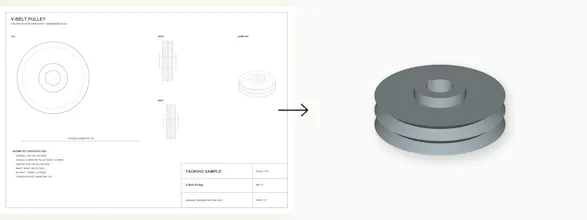
Upload a mechanical drawing as a PDF, PNG, or JPEG. taokiho reads its dimensions, flags features that need review, and creates a 3D preview and STEP file. Use the result to prepare a quote, rebuild a legacy part, or continue the design in your CAD software.



Hi Product Hunt — I’m Hikaru, and I built taokiho.
Mechanical parts often arrive as PDFs, scans, or photos. If you need to quote a part or reuse an old drawing, the first step is usually rebuilding it in CAD. I wanted to make that step faster.
With taokiho, you upload the drawing, review the dimensions and any warnings, and generate a 3D preview and STEP file. The STEP file is meant to be a starting point, so dimensions, tolerances, material, and critical features should still be checked against the original drawing.
The first three conversions are free, with no subscription required, so you can try it on your own drawings.
If you work with mechanical drawings, I’d love to know: what would you need to check before using the generated STEP file?