Launching today

InSnap
Snap it. Mark it. Send it.
3 followers
Snap it. Mark it. Send it.
3 followers
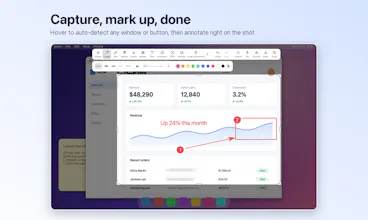
Hover to auto-detect any window or button, drag, annotate, pin it on top. Erase objects, copy text with offline OCR, stitch scrolling screenshots, record and edit video with auto zoom. Mac & Windows.



Free
Launch Team

Framer AI AgentsDesign and publish professional sites with AI
Promoted
Hi Product Hunt, I'm the maker of InSnap. Thanks for taking a look.
I wanted a screenshot tool that works the same on Mac and Windows, feels light, and keeps your screenshots on your computer. It started on HarmonyOS, and I rebuilt it from scratch for Mac and Windows.
What I care about most:
• Privacy. OCR and Smart Erase run locally. Nothing is uploaded unless you choose to share a link.
• Touchpad-friendly. Pinch to grow the selection, two-finger scroll to change the stroke width.
• Free for everyday use: capture, annotate, pin, OCR, basic recording, searchable history.
• Pro is a one-time purchase with future updates included, no subscription. It adds Smart Erase, scrolling screenshots, GIF, the video editor and step-by-step Guides.
It's still young (0.1.x), so there will be rough edges. If something feels off or a tool is missing, tell me here. I read every comment.
What's the one thing your current screenshot tool still can't do?
🧱 The basics
• Private by design: OCR and Smart Erase run on your computer, the core features work offline, and you don't need an account.
• Touchpad-friendly: pinch and two-finger scroll in the selection, pins and history. I tuned it on a Mac, and Windows precision touchpads send a pinch as Ctrl + scroll, so a few gestures feel different there.
• Mac and Windows with the same core features and shortcuts, in 11 languages. No Linux yet.
• Everyday use is free. Pro is one-time with future updates, no subscription.
• History is searchable, including the text inside your screenshots.
📸 Screenshots
• Hover to auto-detect windows and buttons. Pinch or scroll to grow the selection layer by layer.
• Five arrow styles, plus a curved arrow you bend with one handle. Numbered steps, text, mosaic. Two-finger scroll sets the stroke width.
• OCR on the image itself: select the text right on the screenshot and copy it. It runs on your computer.
• Pin any screenshot (or whatever is on your clipboard) on top of every window.
• Scrolling screenshots with a live preview, and Smart Erase that removes an object and fills the background locally (both Pro).
🎬 Recording
• Pick an area, one hotkey to start. The basics are free.
• Click ripples, cursor effects and keystroke overlays, so people can follow what you did.
• In the editor: auto zoom that follows your clicks, backgrounds and a camera picture-in-picture (Pro).
• Trim and split on a timeline, then export MP4, or GIF
📝 Guides
• Click through a task. Every click becomes a step with a screenshot and a title.
• Reorder steps, nest sub-steps, add tip and warning callouts, hide a step.
• Blur sensitive parts in all steps with one click.
• Export to HTML, PDF, Word, PowerPoint, Markdown and more.
• Good for onboarding docs and support answers.
🔗 Sharing
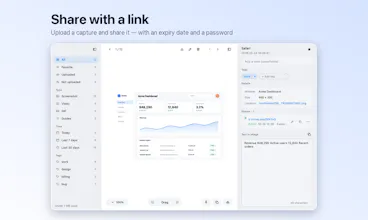
• One click uploads a capture and puts the link on your clipboard.
• Set an expiry date and a password, change them later, or turn the link off.
• Works for screenshots, recordings, GIFs and Guides.
• Every upload stays in your history with its link.
• It's an optional add-on , and uploads go through an automated safety check. Everything else works without it.