Updated!
Presets
1. Presets are now divided into local and global presets.
Local:
- are stored in the document;
- available to everyone who has access to the document.
- not available in other files.
Global:
- are stored on the user's local computer;
- available only to a local user;
- available in all user files within one browser or application;
- may be lost when clearing the cache.
I recommend storing Presets in local storage, and using global storage to move Presets between projects.
2. you can copy the Preset from one storage to another by dragging and dropping it, or by using the "To Global..." / "To Local..." commands in the context menu.
3. Presets can be sorted by dragging and dropping, just like filters.
4. now you can switch to Preset and filter editing mode by double-clicking on them.
Perfect point
Some filters (Bulge / Pinch, Night Vision, Swirl, Tunnel, Lomo) now use an improved control point that:
– displays the range of the effect;
– change their radius with the mouse wheel (scrolling);
– change their radius when dragging (to activate, by selecting a point, press the S key).
Other changes
1. Improved sorting algorithm filters.
2. To avoid auto-switching to edit mode when adding a filter, hold down Ctrl.
3. You can no longer switch to the old slider (range-value).
4. Correction of layout and styles.
Updated! 🚀
– Added the Curves filter.
Powerful color editing tool.
Product page: https://www.producthunt.com/post...
Twitter post: https://twitter.com/AndreslavKoz...
– Added the Vignette filter.
Adds the effect of imitating the darkening of the lens edges.
– Added auto-updates of local presets.
– Auto-updating the result should be less annoying.
– Several other changes.
Updated!
— Improved UI/UX.
— Added filters: Night Vision, BlackWhite, Cartoon, Crosshatch, Lomo, Lsd, Mono, Outline, Tunnel.
— Updated filters: Denoise, Lens Blur, Tilt Shift, Triangle Blur, Color Halftone, Dot Screen, Hexagonal Pixelate, Quadrangular Pixelate, Bulge Pinch, Swirl.
— Getting rid of the Replace image checkbox and adding the ability to get an image of an element and work with it.
— Added the Settings page.
Great update!
What's new.
- Added Range Wheel Slider. Beta (you can go back to the Range Slider).
– You can now move filter control points using the keyboard.
– Dragging control points with the right mouse button is equivalent to dragging with the left with the ctrl held down (moving without updating the canvas).
– You can quickly move the control point to the desired location by right-clicking on the canvas (if there are several points, then select one of them).
– Dragging a point outside of the canvas moves the image along so that the point is visible.
– Dragging the image no longer stops when the cursor is moved outside the plugin.
– In the filter menu, you can now navigate using the keyboard, scrolling has become smoother. https://twitter.com/AndreslavKoz...
Filters
Added: Gaussian Blur, Sharpen, Sharpen RGB, Sharpen Luminance, Noise Displace, Fluid Erosion.
Updated: Lomo, Mono, Bulge / Pinch, Unsharp Mask.
– Other improvements to UX/UI.
An important part of the Range Wheel Slider update!
https://twitter.com/AndreslavKoz...
- The most important thing is the ability to control the value by dragging.
- A right-click or left-click with the alt pressed scrolls to a value that is calculated from the size of the canvas: the beginning of the canvas is the minimum value, the end of the canvas is the maximum.
- Double-click on the center of the field quickly scrolls to the average value. On the left and right sides of the Slider, respectively, to the minimum and maximum.
- When focusing, you can change the values with the arrows ↑, ↓ and the mouse wheel.
- Squeezed shift increases the step by 10 times.
What's new 🚀
- The preview is henceforth fixed when scrolling.
- When you hold down on the preview with the right mouse button, the image scale increases.
- The "Use a thumbnail image as a preview" checkbox, which is responsible for selecting an image for a preview, - original or reduced - is useful when working with large images.
- Some filters now have the ability to adjust the strength of their parameters using Correction Areas: Line, Circle. Each Correction Area adjusts the strength of certain filter parameters in its coverage area: twitter.com/AndreslavKozlov/status/1345728510757888001
- New filters: "Noise HSL", Perspective, "FXAA Antialiasing" (allows you to slightly smooth the staircase of pixels).
- Updated filters:
1. In Sharpen you can now select a channel (RGB, R, G, B, Monohrome) and adjust Correction Areas.
2. "Quadrangular Pixelate" received new parameters Skew X, Skew Y, Voronoi and Correction Areas.
3. “Noise RGB” (formerly called Noise) now features Density, Type (RGB, R, G, B, Monohrome), Bias, Shift and Correction Areas.
4. Filters "Brightness / Contrast", "Hue / Saturation", Exposure, Sepia, Denoise, Vibrance, Grayscale, Mono, Night: got Correction Areas.
5. In "Hexagonal Pixelate" added rotation parameter.
- Removed "Sharpen RGB" filter. If you've used it, it will automatically change to Sharpen WITHOUT saving your settings.
- Images larger than 4096 px in width or height will be reduced proportionally. The plugin cannot save the result in such a high resolution, which is why before, if the image exceeded the permissible resolution, the save button did not respond.
- Lots of other changes, including a few stylistic ones.


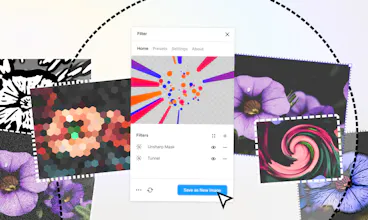

Filter - Figma Plugin
Filter - Figma Plugin
Filter - Figma Plugin
Filter - Figma Plugin
Filter - Figma Plugin
Filter - Figma Plugin
Filter - Figma Plugin